
Rectangle Template: Adjustable Quadrilateral Exploration
Loading the math board and drawing, please wait…
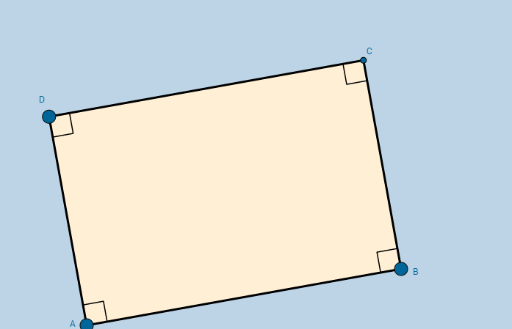
① This applet shows a modifiable quadrilateral that always remains a rectangle, enabling students to drag vertices and observe invariant properties. ② Core math concepts include rectangle definition (four right angles), parallel and equal opposite sides, diagonal properties, and coordinate geometry relationships. ③ Construction uses GeoGebra commands: Segment, OrthogonalLine, Point, Intersect, Angle, and Polygon, with objects A, B, C, D, sides a-d, angles α-δ, and polygon poly1. ④ Ideal for middle school geometry, as a template for discovering rectangle properties, or for introductory coordinate geometry and dynamic constraint exploration.
GeoGebra Commands & Parameters
Segment(A, B) → aOrthogonalLine(A, a) → bOrthogonalLine(B, a) → cPoint(b) → DOrthogonalLine(D, b) → dIntersect(c, d) → CSegment(D, A) → eSegment(D, C) → fSegment(C, B) → gAngle(C, B, A) → αAngle(B, A, D) → βAngle(A, D, C) → γAngle(D, C, B) → δPolygon(A, B, C, D) → poly1, a_1, b_1, c_1, d_1
AI Drawing Prompt Reference
Draw a dynamic rectangle with a horizontal base. From each endpoint of the base, construct a perpendicular line upward. Pick a point on the left perpendicular as the top-left vertex, then draw a line through this point perpendicular to the left side, intersecting the right perpendicular to form the top-right vertex. Connect all four vertices to form a quadrilateral, and mark the four interior angles, ensuring each is a right angle. Show all four sides, with opposite sides parallel and equal. The shape should allow dragging vertices while remaining a rectangle, useful for exploring properties like equal diagonals and parallel opposite sides.
The prompt above was compiled from the original drawing commands and is for reference only.