
Working with Expressions: Orthogonal Construction and Statistical Interpretation
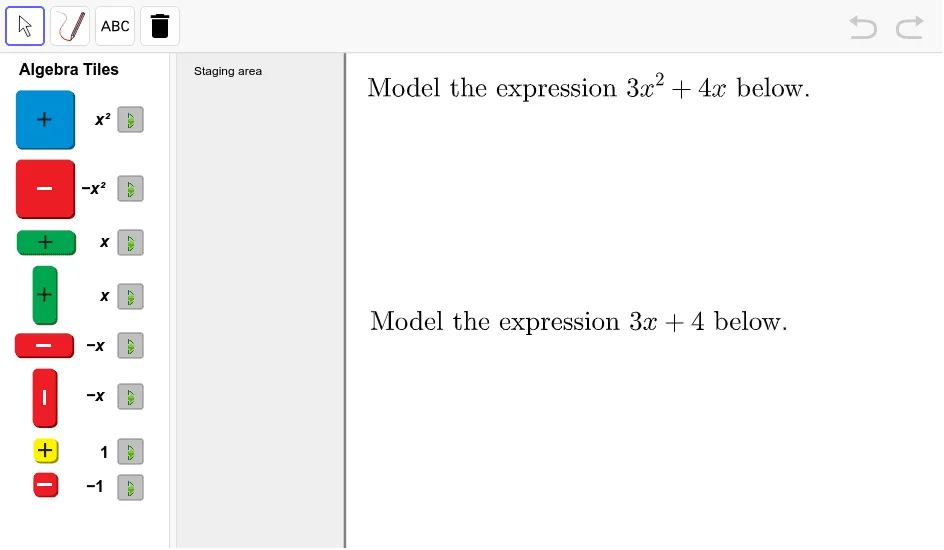
Loading the math board and drawing, please wait…
This GeoGebra example demonstrates how to work with mathematical expressions interactively, linking algebraic results to geometric constructions. It emphasizes using expression-based parameters and controls to update visual elements and computed quantities while illustrating an orthogonal-line construction as a structural backbone. Key concepts include algebraic manipulation of expressions, equations/constraints handling, and visualization of uncertainty-related ideas such as confidence intervals and probability (as suggested by the original site categories). Construction highlights (from the provided construction summary): it uses the GeoGebra command OrthogonalLine, multiple interactive buttons (button1–button8) to switch steps, several picture/scene containers (pic1–pic8) for staged visualization, and annotation objects (text1–text12) to display expressions and results. Parameter/driver objects such as xmax, A, e, f, together with labeled texts (text10–text12), coordinate the dynamic update of the model. Suitable for upper secondary and introductory tertiary education, especially for lessons on algebraic expressions, geometric construction, and dynamic math visualization.
GeoGebra Commands & Parameters
OrthogonalLine(A, xAxis) → e
AI Drawing Prompt Reference
Draw a geometric construction showing an orthogonal line through a specified point on an axis, with buttons to control the step-by-step appearance of elements and results, and text annotations for expressions and values, dynamically updating the model with parameters.
The prompt above was compiled from the original drawing commands and is for reference only.