
Using a Protractor Practice
Loading the math board and drawing, please wait…
In collections
Elementary School
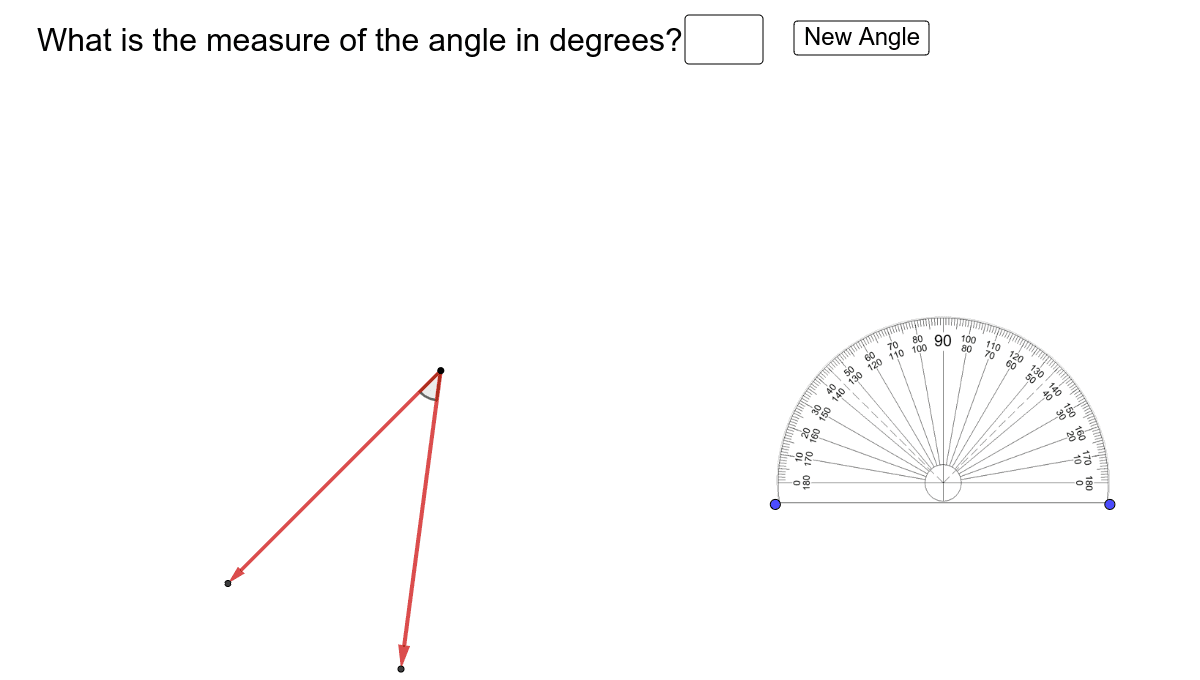
This example demonstrates how to use a protractor for measuring and drawing angles. It involves core mathematical concepts such as angle measurement and geometric construction. The construction uses GeoGebra commands and objects like Random, Point, Ray, Circle, Intersect, Vector, Angle, Textfield, If, Polygon. Suitable for middle school students or beginners in mathematics for practicing geometric constructions and angle concepts.
GeoGebra Commands & Parameters
Random(-20, 20) → aRandom(-20, 20) → bRandom(-20, 20) → cRandom(-20, 20) → dPoint(xAxis) → CRay(C, B) → fRay(C, A) → gCircle(C, 4.5) → eIntersect(e, f, 1) → FIntersect(e, g, 1) → GVector(C, F) → uVector(C, G) → vAngle(F, C, G) → αTextfield(sanswer) → InputBox2If(answermin < sanswer < answermax, "Correct", "Try again") → fbPolygon(H, I, J, K) → q1, h, i, j, k
AI Drawing Prompt Reference
On a coordinate plane, generate four random numbers to determine two points. Pick a point on the x-axis as the vertex of an angle. From this vertex, draw two rays toward the two random points, forming an arbitrary angle. With the vertex as center, draw a circle of fixed radius that intersects both rays at two points. From the vertex, draw vectors to these intersection points, and label the angle between the rays. Place an input box nearby for the user to enter the angle measure, and show feedback 'Correct' or 'Try again' based on whether the input falls within a valid range. Finally, draw a quadrilateral in an empty area as decoration or reference.
The prompt above was compiled from the original drawing commands and is for reference only.