
Triangle Area: Changing Apex, Base, and Height
Loading the math board and drawing, please wait…
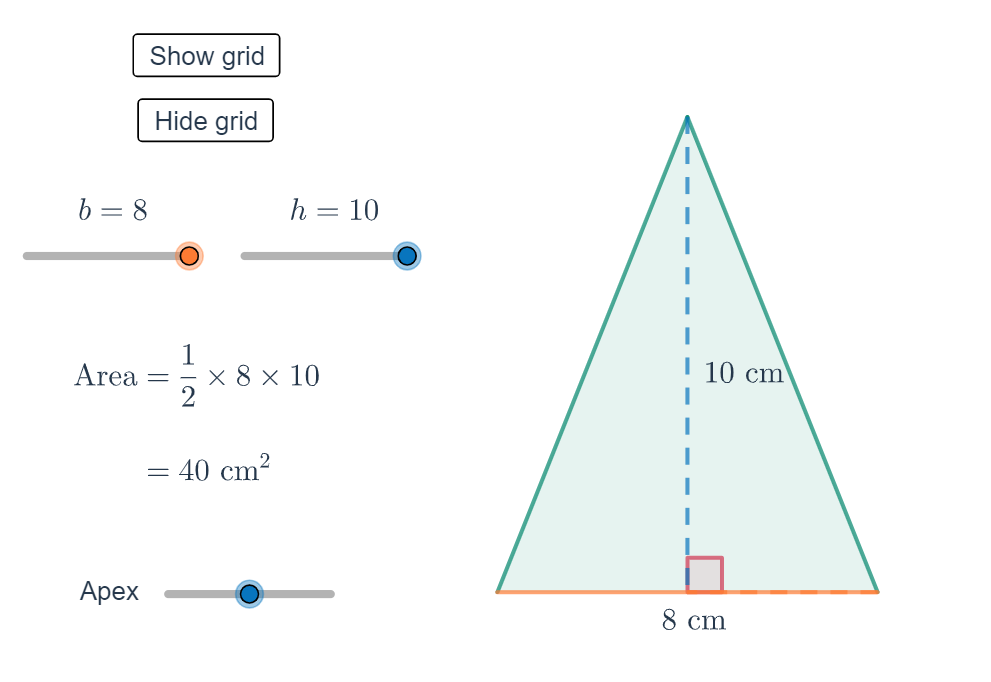
This example interactively changes the triangle’s apex position (and thus its effective base and height) to demonstrate how the area varies in real time. The key mathematics includes the triangle area formula A = (1/2)·b·h, the geometric meaning of base and altitude, and parameter-driven construction to observe quantitative change. Construction highlights: it uses Polygon and Segment to build the triangle and its defining edges, Angle to represent or control the relevant angle relationships for locating the altitude, and Intersect to compute the intersection point that defines the height h with respect to the chosen base. The construction uses objects such as the apex, base b, height h, an area label/quantity A, and parameter/angle elements (e.g., α, β, t1) along with UI elements (buttons and text) to support interactive exploration. Suitable for secondary school geometry instruction, classroom demonstrations, and guided student inquiry.
GeoGebra Commands & Parameters
Intersect(xAxis, yAxis) → APolygon(A, B, C) → t1, c, a, b_1Segment(B, D) → fAngle(C, D, B) → αIntersect(f, xAxis) → ESegment(C, E) → gSegment(A, D) → iAngle(A, D, B) → β
AI Drawing Prompt Reference
Draw a triangle with vertex A movable on the intersection of the x-axis and y-axis, forming different bases and heights. Use the polygon tool to create triangle ABC, then draw base BC and height AD, where D is the intersection of BC's extension with the x-axis. Adjust the position of vertex A to observe changes in the triangle's area and label angles α and β.
The prompt above was compiled from the original drawing commands and is for reference only.