
Using Inverse Trig Functions to Express Angle Measures
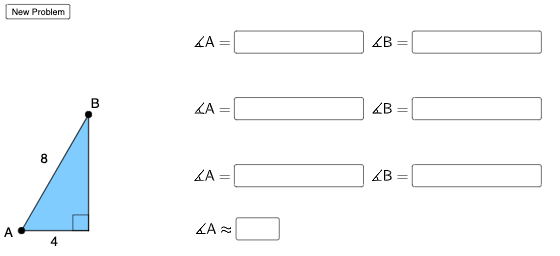
Loading the math board and drawing, please wait…
This example demonstrates how to use inverse trigonometric functions to express angle measures. It involves using commands like Random, Polygon, Circle, Intersect, Segment, Angle, Textfield, Element, SurdText, If to construct the demonstration. Suitable for high school math education and learning.
GeoGebra Commands & Parameters
Random(2, 9) → aRandom(2, 10) → bRandom(a + 1, 10) → cPolygon(A, B_1, C) → t1, c_1, a_1, b_1Circle(A, c) → dIntersect(d, f, 1) → BPolygon(A, B_1, B) → t2, d_1, a_2, b_2Segment(A, B_1) → gSegment(B_1, B) → hSegment(B, A) → iSegment(C, B_1) → jSegment(C, A) → kAngle(B, B_1, A) → αRandom(1, 2) → mTextfield(e) → InputBox1Angle(B_1, A, C) → βRandom(1, 4) → nElement(L1, n) → text1Element(L2, n) → text2SurdText(e) → text8Angle(B_1, A, B) → γTextfield(l) → InputBox2Textfield(o) → InputBox3Textfield(p) → InputBox4Textfield(q) → InputBox5Textfield(r) → InputBox6Textfield(s) → InputBox7If(a1, "√", "X") → text4If(a2, "√", "X") → text9If(a3, "√", "X") → text10If(b1, "√", "X") → text11If(b2, "√", "X") → text12If(b3, "√", "X") → text13Textfield(δ) → InputBox8If(aapprox, "√", "X") → text3
AI Drawing Prompt Reference
Draw a polygon with a random number of sides and intersect it with a randomly generated circle on one of its sides to form a new triangle. Label the vertices, sides, and angles of the polygon, and use inverse trigonometric functions to calculate and display the angle measures, incorporating randomly generated text and symbols to demonstrate the application of inverse trigonometric functions in expressing angles.
The prompt above was compiled from the original drawing commands and is for reference only.