
Transforming a Rectangle into a Square
Loading the math board and drawing, please wait…
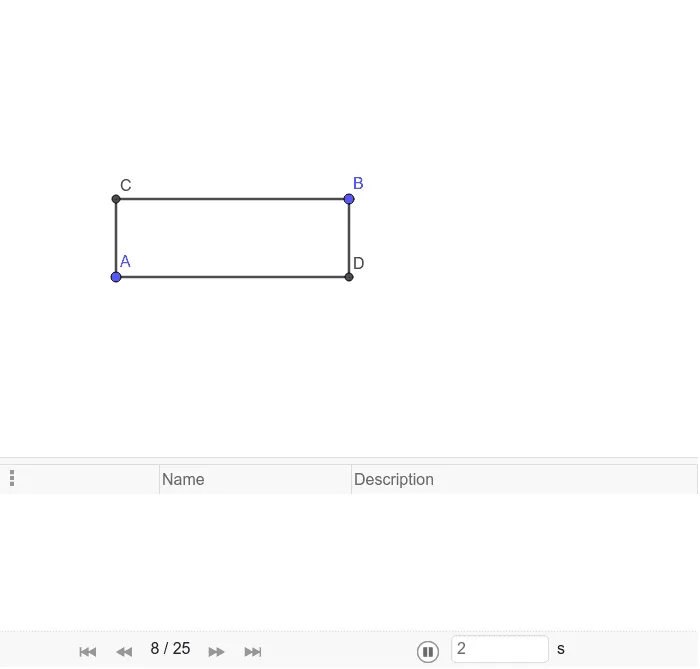
This example demonstrates how to transform a rectangle into a square using geometric transformations. Key mathematical concepts include geometric transformations, similar triangles, and area calculation. It utilizes commands such as Segment, Ray, Rotate, Midpoint, Semicircle, Intersect, Polygon, and more. Suitable for middle school and above students to learn about geometric transformations and area calculation.
GeoGebra Commands & Parameters
Segment(C, B) → fSegment(B, D) → gSegment(D, A) → hSegment(A, C) → iRay(A, D) → jRotate(B, (-(90°)), D) → B'Segment(A, B') → kMidpoint(k) → ESemicircle(A, B') → cRay(D, B) → lIntersect(c, l, 1) → FRotate(F, (-(90°)), D) → F'Rotate(D, (-(90°)), F') → D'Segment(F, D') → mSegment(D', F') → nPolygon(A, C, B, D) → q1, a, c_1, b, dPolygon(D, F, D', F') → q2, d_1, f_1, d', f'PointIn(q1) → Pointq1PointIn(q2) → Pointq2
AI Drawing Prompt Reference
Draw a rectangle and transform it into a square using geometric transformations. Start by drawing the four sides of the rectangle, then extend a ray from one corner and rotate another corner around the opposite corner by 90 degrees. Connect the rotated corner to the original corner. Find the midpoint of this line segment and draw a semicircle with the midpoint as the center. Extend another ray from the opposite corner and let it intersect the semicircle. Rotate this intersection point around the opposite corner by 90 degrees, then rotate it again around the new intersection point by 90 degrees. Connect these points to form two quadrilaterals. Finally, mark a point inside each quadrilateral.
The prompt above was compiled from the original drawing commands and is for reference only.