
SSA Ambiguous Case Dynamic Illustrator
Loading the math board and drawing, please wait…
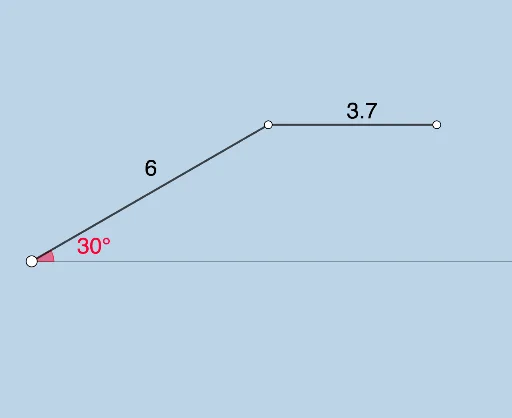
This example dynamically illustrates the ambiguous case in triangle geometry under SSA (Side-Side-Angle) conditions, where two distinct triangles can be formed. It involves core mathematical concepts such as trigonometric functions, triangle similarity and congruence criteria, and geometric constructions. The construction utilizes GeoGebra commands and objects like Intersect, Rotate, Angle, Ray, Circle, Segment, Point, Polygon, Distance, and Textfield. It is suitable for high school mathematics education to visually demonstrate and understand the geometric diversity under SSA conditions.
GeoGebra Commands & Parameters
Intersect(xAxis, yAxis) → ARotate(B, α_1, A) → B'Angle(B, A, B') → αRay(A, B') → gCircle(A, b_1) → cIntersect(c, g, 1) → CRay(A, B) → hSegment(A, C) → bCircle(C, a) → dPoint(d) → DIntersect(d, h) → E, FPolygon(A, F, C) → t1, c_1, a_1, f_1Segment(C, G) → iAngle(F, C, G) → γAngle(E, C, G) → δRotate(C, If[0 < e ≤ 1, ((-e) * γ), (-γ)], C) → C'Rotate(G, If[0 < e ≤ 1, ((-e) * γ), (-γ)], C) → G'Segment(C', G') → i'Rotate(C', If[2 < e ≤ 3, ((-(e - 2)) * (δ - γ)), (-(δ - γ))], C) → C''Rotate(G', If[2 < e ≤ 3, ((-(e - 2)) * (δ - γ)), (-(δ - γ))], C) → G''Segment(C'', G'') → i''Polygon(A, E, C) → t2, c_2, a_2, e_1Distance(C, h) → jRotate(G, If[0 < e ≤ 1, ((-e) * π / 2), ((-π)) / 2], C) → G'_1Segment(C, G'_1) → kAngle(C, F, A) → εAngle(A, C, F) → ζAngle(C, E, A) → ηAngle(A, C, E) → θSegment(A, F) → lSegment(A, E) → mTextfield(α_1) → InputBox1Textfield(b_1) → InputBox2Textfield(a) → InputBox3
AI Drawing Prompt Reference
Draw a triangle where one side and the included angle can be dynamically adjusted using sliders, demonstrating two distinct triangles that can be formed under certain conditions. Start by plotting a point and drawing a ray. Then, draw a circle centered at the point with the length of one side as the radius, intersecting the ray at a point to form the third vertex of the triangle. Next, draw another circle centered at this vertex with the length of the other side as the radius, intersecting the ray again to form the third vertex of the second triangle. Finally, draw both triangles, labeling key angles and sides, and observe the geometric relationships as the sliders are adjusted.
The prompt above was compiled from the original drawing commands and is for reference only.