
Q3 Mathematical Example
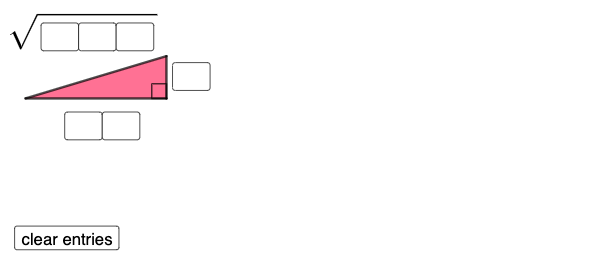
Loading the math board and drawing, please wait…
This example demonstrates the interaction between planes and exponential functions in three-dimensional space, along with the application of two-dimensional vectors. The core mathematical concepts involved include plane equations, exponential function properties, two-dimensional vector operations, and trapezoidal geometry. The construction highlights the use of commands and objects such as Textfield, Polygon, Segment, Angle, Circle, Point, If, Mirror, and Intersect from GeoGebra. It is suitable for high school and above students to understand the correlation between spatial geometry and function graphs, as well as the application of vectors in geometric problems.
GeoGebra Commands & Parameters
Textfield(a) → InputBox1Textfield(b) → InputBox2Textfield(c) → InputBox3Textfield(d) → InputBox4Textfield(f) → InputBox5Textfield(g) → InputBox6Polygon(A, B, C) → t1, c_1, a_1, b_1Segment(C, B) → hSegment(B, A) → iSegment(A, C) → jAngle(C, B, A) → αCircle(D, (10 * a) + b) → ePoint(e) → ECircle(E, c) → kSegment(D, E) → lIf(Length[Mode[l1]] ≟ 0, "No digits repeat!", "Repeated digits exist.") → text4Mirror(E, l) → E'Mirror(D, l) → D'Mirror(E, l) → E'_{1}Mirror(D, l) → D'_{1}Circle(D, sqrt((100 * d) + (10 * f) + g)) → qIntersect(k, q, 2) → FSegment(D, F) → mSegment(F, E) → nAngle(F, E, D) → βPolygon(D, E, F) → t2, f_1, d_1, e_1
AI Drawing Prompt Reference
Create a 3D-style diagram illustrating the interaction between planes and exponential functions, together with supporting 2D vector/geometry construction. Start by placing three adjustable points and connect them to form a triangle, including the three sides and labeling one angle at the appropriate vertex. Then construct two circles linked to the triangle: draw a first circle using a chosen radius from an input parameter, pick its center point, and draw a second circle with a radius defined by another expression. Compute an intersection point of the two circles and connect this intersection to the relevant circle center(s). Mark the corresponding angle, and finally form a polygon using the center point(s) and the intersection point.
The prompt above was compiled from the original drawing commands and is for reference only.