
Practice: Drawing a Circle to Match an Equation
Loading the math board and drawing, please wait…
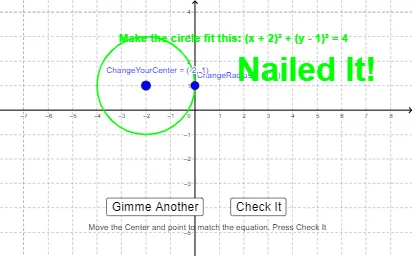
① This example demonstrates how to draw a circle that matches a given equation in standard form (x-h)²+(y-k)²=r², using an interactive GeoGebra applet for practice. ② Core math concepts include the standard equation of a circle, center coordinates, radius, distance formula, and symmetry. ③ Construction highlights: The applet uses GeoGebra commands such as Element, Random, Circle, Textfield, Distance, and OrthogonalLine to generate random circle equations; input boxes (inputBox1-3) allow students to enter their guessed center and radius; the Distance command computes the error between the student's center and the target center, while buttons (button1, button2) and conditional checks (NailedIt, RadiusNotRight, CenterNotRight) provide immediate feedback; sliders (ChangeRadius, ChangeYourCenter) and text fields support dynamic adjustment. ④ Suitable for middle or high school students learning coordinate geometry, ideal for classroom practice or self-study to reinforce the connection between algebraic equations and geometric circles, and useful for teachers as a demonstration tool.
GeoGebra Commands & Parameters
Element(Dimension[CM], 1) → NumberOfEquationsRandom(1, NumberOfEquations) → WhichPointCircle(ChangeYourCenter, ChangeRadius) → eRandom(1, NumberOfEquations) → counterElement(CM, counter) → targetCircleCoefElement(targetCircleCoef, 3) → trElement(targetCircleCoef, 2) → tkElement(targetCircleCoef, 1) → thCircle(Target, TargetRadius) → cTextfield(h) → inputBox1Textfield(k) → inputBox2Textfield(r) → inputBox3Distance(ChangeYourCenter, ChangeRadius) → YourRadiusCircle(YourHKCenter, YourRadius) → dOrthogonalLine(Target, xAxis) → aOrthogonalLine(Target, yAxis) → bDistance(ChangeYourCenter, ChangeRadius) → distanceEF
AI Drawing Prompt Reference
Draw a coordinate plane with a target circle defined by a random equation, whose center and radius are determined by hidden values. Include an adjustable reference circle whose center and radius can be changed via sliders or input fields. At the target circle's center, draw a horizontal and a vertical dashed line as reference axes. Connect the reference circle's center to the target circle's center with a dashed line and label the distance between them. Display the coordinates of the reference circle's center and its radius near the circle. Provide three input boxes for entering guessed x-coordinate, y-coordinate, and radius, along with two buttons for submitting and resetting. Show text feedback like "center wrong" or "radius wrong" when guesses are incorrect, and "success" when they match.
The prompt above was compiled from the original drawing commands and is for reference only.