
Numbers to Words Practice
Loading the math board and drawing, please wait…
In collections
Arithmetic: Skills & Concepts
Arithmetic: Skills & Concepts
Arithmetic: Skills & Concepts
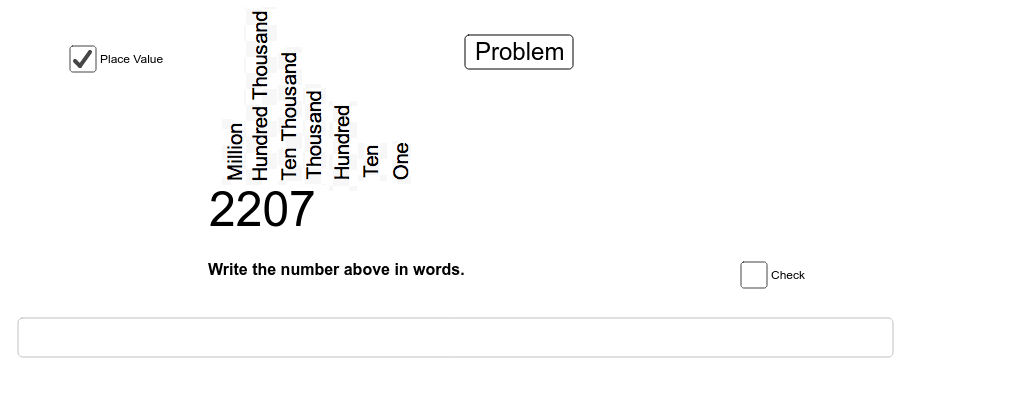
① This interactive GeoGebra example demonstrates a practice tool for converting numbers into their English word forms, where users input a number and see the corresponding text output. ② The core mathematical concepts involve number representation, place value, and basic algorithmic logic for mapping numerals to words. ③ Construction details: The example uses GeoGebra commands such as Random to generate random numbers, Text to display words, Length and Element for string manipulation, Textfield for user input, and If for conditional logic; objects include gen, A1-A5, B1-B2, and E1-E31, which store random values, inputs, and result texts. ④ This is suitable for early elementary students or bilingual math-English learning, reinforcing number literacy and serving as a simple visual introduction to conditional programming.
GeoGebra Commands & Parameters
Random(1, 9) → genRandom(0, (999 * gen / gen)) → A2Random(0, (9 * gen / gen)) → A3Random(0, (9 * gen / gen)) → A4Random(0, (9 * gen / gen)) → A5Random(0, (9 * gen / gen)) → A1Text(B1) → B2Length(list1) → cLength(list2) → dRandom(1, 70) → A10Element(list2, A10) → B11Textfield() → inputBox1If(B11 < 1000000, x = 0.6) → iIf(B11 < 1000000, x = 0.6) → jIf(B11 < 1000000, x = 0.6) → lIf(B11 < 1000000, x = 0.6) → mIf(B11 < 1000000, x = 0.6) → nIf(B11 < 1000000, x = 0.6) → pIf(B11 < 1000000, x = 0.6) → qIf(B11 < 1000000, x = 0.6) → rIf(B11 < 1000000, x = 0.6) → sIf(B11 < 1000000, x = 0.6) → tElement(list1, A10) → A11
AI Drawing Prompt Reference
Create a practice interface for converting numbers to English words. In the center, display a randomly generated large number (under one million), with an input box beside it for the user to type the corresponding English word. The interface includes multiple text labels showing the English words for each digit place (ones, tens, hundreds), and a feedback area indicating correct or incorrect. The layout is simple and child-friendly, with a light background and clear, readable numbers and text.
The prompt above was compiled from the original drawing commands and is for reference only.