
Maximum Area of a Trapezoid via Calculus
Loading the math board and drawing, please wait…
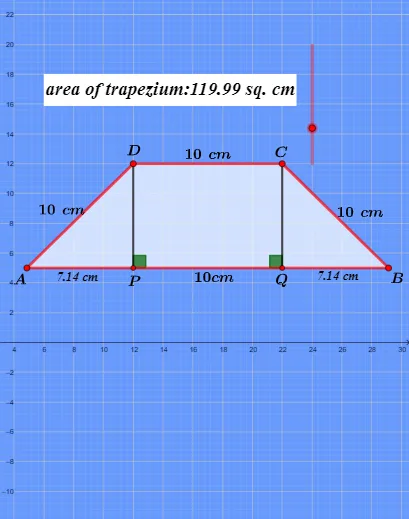
This GeoGebra example dynamically illustrates the process of finding the maximum area of a trapezoid. By adjusting a parameter, users can observe how the area changes and use derivatives to determine the optimal condition. Construction employs commands such as Segment, Circle, Intersect, Polygon, OrthogonalLine, Angle, and Text, covering key concepts like the trapezoid area formula, differentiation, and extreme value analysis. It is well suited for high school calculus instruction or optimization topic exploration.
GeoGebra Commands & Parameters
Segment(D, C) → fCircle(D, Length[Segment[D, C]]) → cCircle(C, Length[Segment[C, D]]) → dIntersect(c, g, 1) → AIntersect(d, g) → E, BPolygon(A, B, C, D) → q1, a_1, b, c_1, d_1OrthogonalLine(D, a_1) → hOrthogonalLine(C, a_1) → iIntersect(h, a_1) → FIntersect(i, a_1) → GSegment(F, D) → jSegment(C, G) → kAngle(G, F, D) → αAngle(C, G, F) → βText((("area of trapezium:" * q1) * " sq. cm")) → text13Text((Length[Segment[B, G]] * " cm")) → text2Text((Length[Segment[B, G]] * " cm")) → text3
AI Drawing Prompt Reference
Draw a dynamic illustration showing how to find the maximum area of a trapezoid, featuring two intersecting circles and a line. Construct a trapezoid using the intersection points of the circles with the line, display the area of the trapezoid and lengths of its non-parallel sides, find the height using perpendicular lines, and label the angles and area value to observe how the area changes with parameter adjustments.
The prompt above was compiled from the original drawing commands and is for reference only.