
Dynamic Area of Equilateral Triangle
Loading the math board and drawing, please wait…
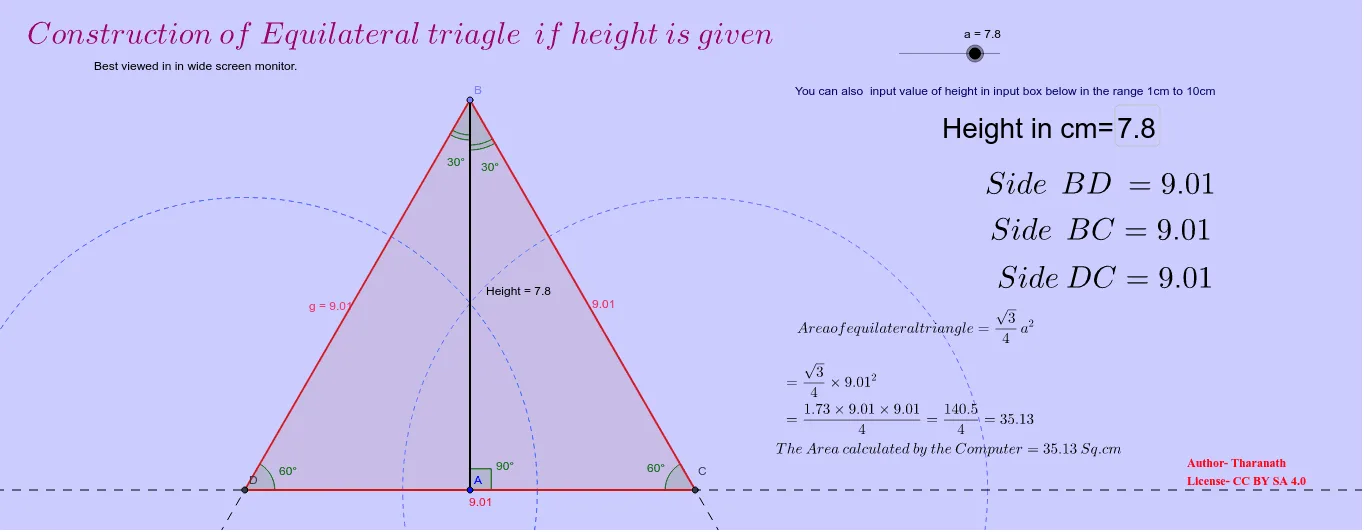
This GeoGebra example provides an interactive demonstration of the area of an equilateral triangle. It visually shows how the area is computed using the base-height formula, with dynamic adjustment of side length. Core concepts include equilateral triangle properties, area formula, and geometric construction of altitude. The construction uses commands such as Point, Segment, OrthogonalLine, Rotate, Angle, Ray, Intersect, Polygon, Area, and Circle, along with text fields and input boxes for parameter control. Suitable for middle school geometry lessons, it helps students explore how changing side length affects the area and reinforces understanding of triangle area formulas in a dynamic environment.
GeoGebra Commands & Parameters
Point(Circle[A, a]) → BSegment(A, B) → HeightOrthogonalLine(A, Height) → cRotate(A, 30°, B) → A'Angle(A, B, A') → αRay(B, A') → dIntersect(c, d) → CSegment(B, C) → eRotate(A, 330°, B) → A'_1Angle(A'_1, B, A) → βRay(B, A'_1) → fIntersect(c, f) → DSegment(B, D) → gSegment(D, C) → hAngle(C, A, B) → γAngle(A, D, B) → δAngle(B, C, A) → εTextfield(a) → inputBox1Polygon(B, D, C) → poly1, c_1, b_1, d_1Area(B, D, C) → iCircle(D, (0.75 * a)) → kCircle(C, (0.75 * a)) → p
AI Drawing Prompt Reference
Draw an equilateral triangle with a dynamic side length to demonstrate the area calculation. Start by drawing a circle and marking a point on it as a vertex. Connect this vertex to another point on the circle to form the base. Then, draw a perpendicular line from the vertex to the base and use rotation to construct the other two vertices of the triangle. Finally, calculate and display the area, and draw two dashed circles for reference.
The prompt above was compiled from the original drawing commands and is for reference only.