
Drawing the Image After Reflection
Loading the math board and drawing, please wait…
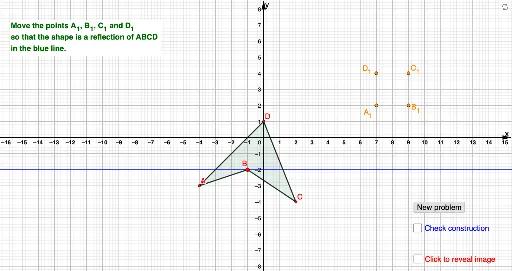
This example demonstrates how to draw the image after a reflection. Key mathematical concepts include reflection transformation. Commands used include Random, Polygon, Segment, Mirror, etc. Suitable for middle school math education and students learning reflection transformation.
GeoGebra Commands & Parameters
Random(-4, 4) → aRandom(-4, 4) → bRandom(-4, 4) → cRandom(-4, 4) → dRandom(-4, 4) → eRandom(-4, 4) → fRandom(-4, 4) → gRandom(-4, 4) → hPolygon(A, B, C, D) → q1, a_1, b_1, c_1, d_1Segment(A, B) → iSegment(B, C) → jSegment(C, D) → kSegment(D, A) → lRandom(-2, 2) → mRandom(-2, 2) → nRandom(-1, 1) → oRandomElement({y = m, x = n, y = (o * x) + m}) → qMirror(A, q) → A'Mirror(B, q) → B'Mirror(C, q) → C'Mirror(D, q) → D'Polygon(A', B', C', D') → q1', a', b', c', d'DynamicCoordinates(G, round(x(G)), round(y(G))) → A_1DynamicCoordinates(H, round(x(H)), round(y(H))) → B_1DynamicCoordinates(E, round(x(E)), round(y(E))) → C_1DynamicCoordinates(F, round(x(F)), round(y(F))) → D_1Polygon(A_1, B_1, C_1, D_1) → q2, p, r, s, tSegment(C_1, D_1) → f_1Segment(A_1, D_1) → g_1Segment(A_1, B_1) → h_1Segment(B_1, C_1) → i_1Segment(D_1, A_1) → j_1If(A_1 ≟ A' ∧ B_1 ≟ B' ∧ C_1 ≟ C' ∧ D_1 ≟ D', "Correct!", "No. Try again.") → text1
AI Drawing Prompt Reference
Randomly generate four points on the coordinate plane and connect them to form a quadrilateral. Then randomly choose a line (horizontal, vertical, or slanted) and reflect each vertex of the quadrilateral across this line, obtaining four reflected points that are connected to form a new quadrilateral. Additionally, place four draggable integer-coordinate points and connect them into another quadrilateral. When these four integer points exactly match the reflected vertices, display "Correct!", otherwise show "No. Try again.". The whole figure demonstrates reflection transformation.
The prompt above was compiled from the original drawing commands and is for reference only.