
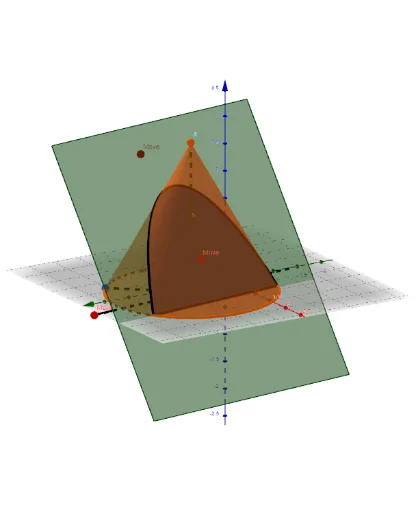
Cutting a Cone with an Interactive Plane
Loading the math board and drawing, please wait…
This example demonstrates the process of slicing a cone with an interactive plane to observe the changing shape of the cross-section. It involves core mathematical concepts such as solid geometry, cross-sectional geometry, linear regression, and median values. The construction utilizes GeoGebra commands and objects like Point, Line, Circle, Plane, Cone, and Intersect. It is suitable for high school and above students learning spatial geometry and cross-sectional analysis.
GeoGebra Commands & Parameters
Point(Circle[B, Distance[A, B], Segment[A, B]]) → CCube(A, B, C) → a, D, faceCDHG, faceEFGH, arêteAD, arêteAB, arêteBC, arêteCD, arêteAE, arêteDH, arêteEH, arêteEF, E, arêteBF, arêteFG, arêteCG, arêteGH, F, G, H, faceABCD, faceADHE, faceABFE, faceBCGFMidpoint(C, A) → IMidpoint(F, H) → JLine(J, I) → fCircle(I, Distance[A, B], f) → cPoint(c) → KMidpoint(F, C) → MMirror(K, I) → K'Line(K', K) → gCircle(I, (1.2 * Distance[A, B]), g) → dPoint(d) → LPlane(L, K, K') → pCircle(K', L, K) → eCenter(e) → NOrthogonalLine(N, p) → hPoint(h) → OVector(I, O) → uTranslate(p, u) → p'Segment(K', K) → bLine(L, b) → f_1Point(arêteEF) → D_1OrthogonalLine(K, p) → h_1Plane(K', h_1) → p_1OrthogonalLine(K, p_1) → k_1Line(K', k_1) → l_1Intersect(f_1, l_1) → E_1Intersect(k_1, f_1) → F_1Mirror(F_1, K) → G_1Mirror(E_1, K') → H_1Polygon(F_1, E_1, H_1, G_1) → q2, m_1, e_1, n_1, q_1Translate(q2, u) → q2'Circle(I, Distance[I, A], f) → qPoint(f) → SCone(q, (-Distance[I, S])) → n, r, oIntersectPath(p', n) → kIntersectPath(p', n) → sSegment(A, I) → iSegment(I, S) → j
AI Drawing Prompt Reference
Draw a cone and slice it with an interactive plane to observe the changing shape of the cross-section. Start by creating a circle and two points, then construct a cube using these points as vertices. Find the midpoints of the circle and the cube's diagonals, and connect them to form a line. Draw two concentric circles centered at the midpoint. Locate the intersection points of these circles and use them to create a plane. Finally, move the plane along a specific direction to see the cross-section of the cone after slicing.
The prompt above was compiled from the original drawing commands and is for reference only.