
Understanding Percentages in Geometry and Algebra
Loading the math board and drawing, please wait…
In collections
The Fractions book
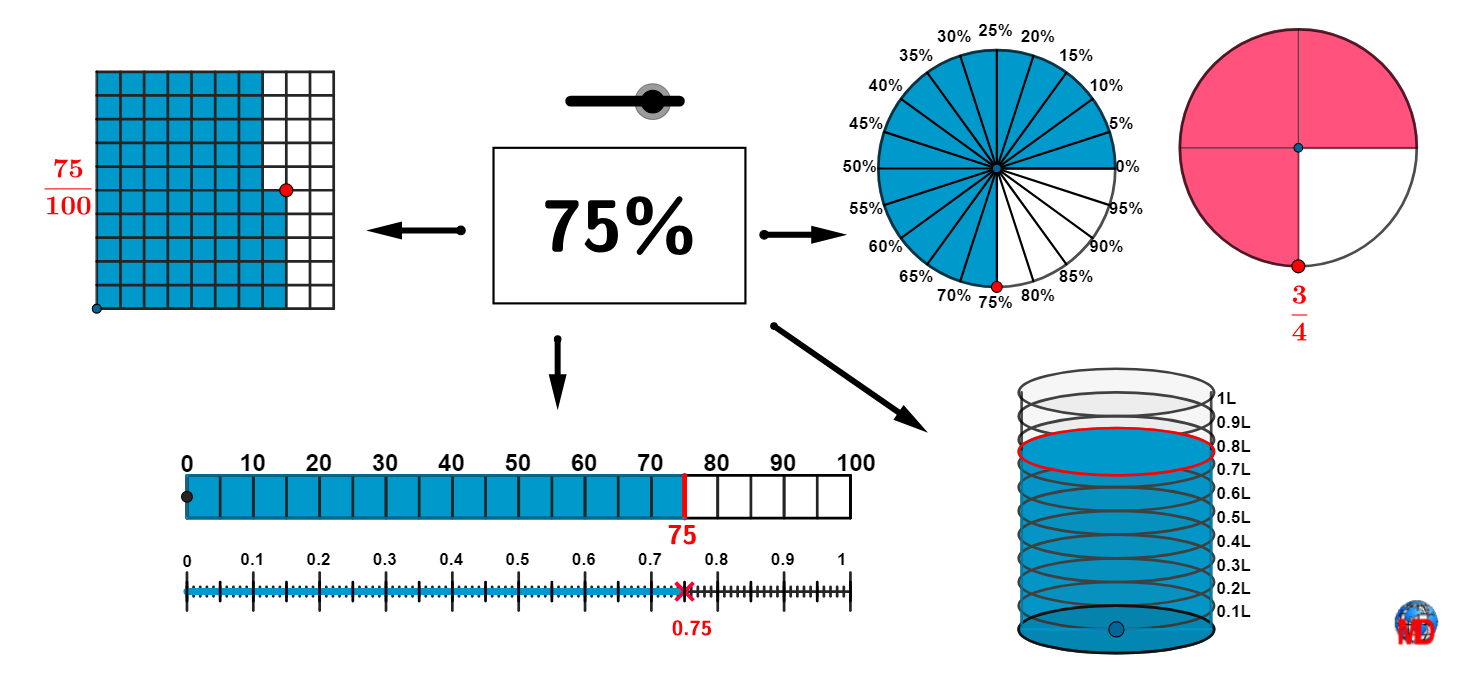
This example demonstrates the application of percentages through geometric and algebraic operations. Key mathematical concepts include ratios, fractions, and geometric transformations. Construction involves GeoGebra commands like Sequence, Polygon, Circle, and Translate. Suitable for middle school or high school students learning the integration of geometry and algebra.
GeoGebra Commands & Parameters
Sequence((k, y(E)), k, x(E), x(F), Distance[E, F] / 100) → ptGridPolygon(A, B, 4) → poly1remplil, j, m, n, p, M, NPolygon(A, B, 4) → poly1tour, f, g, h, i, C, DMirror(P1, yAxis) → P1'Mirror(P1', xAxis) → P1''Mirror(P1'', yAxis) → P1'''Polygon(P1, P1', P1'', P1''') → blanc, p1, p1', p1'', p1'''Segment(E, F) → segmPercSequence(Segment[(t, y(E) - 0.8), (t, y(E) + 0.8)], t, x(E), x(F), Distance[E, F] / 10) → longgrad1Sequence(Segment[(t, y(E) - 0.9), (t, y(E) + 0.9)], t, x(E), x(F), Distance[E, F] / 20) → intergrad1Sequence(Segment[(t, y(E) - 0.2), (t, y(E) + 0.2)], t, x(E), x(F), Distance[E, F] / 100) → petitgrad1Sequence(E + (k / 100 * (F - E)), k, 0, 100) → segmGridZip({Segment[(k, 0), (k, 10)], Segment[(0, k), (10, k)]}, k, 1…10) → carreSegment(G, H) → segmNumVector(E, G) → uTranslate(longgrad1, u) → longgrad2Translate(petitgrad1, u) → petitgrad2If(x(P) ≠ x(F), Polygon[A, L, Pointfin, I, K, D], poly1remplil) → poly2Vector(O, R) → vVector(A, S) → wTranslate(carre, w) → Divcarre'Translate(poly2, w) → poly2'Translate(A, w) → A'Translate(B, w) → B'Segment(A', B') → f'Segment(S, S + (0, 10)) → kPolygon(E + (0, 0.9), F + (0, 0.9), F + (0, -0.9), E + (0, -0.9)) → q1, l, q, r, sPolygon(E + (0, 0.9), P + (0, 0.9), P + (0, -0.9), E - (0, 0.9)) → q2, t, c, d, eSegment(G, Q) → f_1Translate(Pointfin, w) → pointfin'Sequence((t, y(E) + 0.9), t, x(E), x(F), Distance[E, F] / 10) → l1Circle(U, 5) → c_1Sequence(Rotate[V, i, U], i, 0, (2 * pi), (2 * pi / 20)) → l3Rotate(V, ((a / 100 * 2) * pi), U) → V'CircleSector(U, V, V') → d_1Sequence((t, y(G) + 0.9), t, x(E), x(F), Distance[E, F] / 10) → l6Sequence(Text[(10 * i), Element[l1, i] + (2.2, 0.2)], i, 0, Length[l1] - 1, 1) → l2Sequence(Segment[Element[l3, i], U], i, 1, Length[l3], 1) → l4GCD(a, 100) → aaCircle(W, 5) → e_1Sequence(Rotate[Z, i, W], i, 0, (2 * pi), (2 * pi / (100 / aa))) → l8Rotate(Z, ((a / aa * 2) * pi / (100 / aa)), W) → Z'CircleSector(W, Z, Z') → g_1Sequence(Segment[W, Element[l8, i]], i, 1, Length[l8]) → l9Mirror(B_1, A_1) → C_1Ellipse(C_1, B_1, D_1) → h_1Midpoint(E_1, F_1) → G_1Segment(E_1, B_1) → i_1Segment(F_1, C_1) → j_1Vector(A_1, G_1) → u_1Sequence(Translate[h_1, Vector[(i * u_1)]], i, 0, 1, 0.1) → l10Translate(h_1, Vector[(valDec * u_1)]) → k_1Translate(B_1, Vector[(valDec * u_1)]) → H_1Translate(C_1, Vector[(valDec * u_1)]) → I_1Polygon(H_1, B_1, C_1, I_1) → q3, l_1, b_1, m_1, n_1Ellipse(C_1, B_1, D_1) → p_1Sequence(Text[(10 * i / 2) + "%", (1.15 * Element[l3, i + 1]) + (-3.2, -1.5)], i, 0, Length[l3] - 2, 1) → l5Sequence(Translate[C_1, Vector[(i * u_1)]], i, 0, 1, 0.1) → l11Sequence(Text[(0.1 * i) + "L", Element[l11, i] + (0.2, 0.5)], i, 0, Length[l11] - 1, 1) → l12Translate(h_1, Vector[(valDec * u_1)]) → q_1Vector(J_1, K_1) → v_1Vector(L_1, M_1) → w_1Vector(N_1, O_1) → a_1Vector(P_1, Q_1) → r_1Sequence(Segment[(t, y(G) - 0.4), (t, y(G) + 0.4)], t, x(G), x(H), Distance[G, H] / 20) → intergrad2Sequence(Text[i / 10, Element[l6, i] + (2.25, 0.2)], i, 0, Length[l1] - 1, 1) → l7
AI Drawing Prompt Reference
Draw a comprehensive geometric and algebraic diagram demonstrating percentages. Start with a square, subdivided into a grid with tick marks. Above the square, draw a horizontal number line from 0 to 100 with labeled ticks. Below the number line, place a rectangle divided into 100 vertical strips, with a portion shaded to represent a percentage. Next to it, draw a circle with a sector highlighted to show the same percentage, and label the angle. Also include an ellipse to illustrate the relationship between percentages and geometric shapes. Finally, add arrows and labels to explain the connections between the parts.
The prompt above was compiled from the original drawing commands and is for reference only.