
Creating Expressions (3): Conditional Labels with Polygons and Fractions
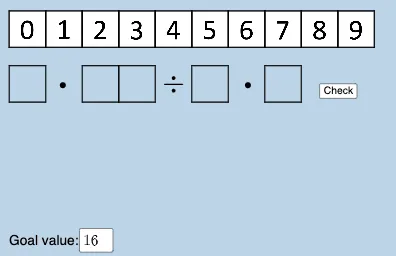
Loading the math board and drawing, please wait…
This GeoGebra example demonstrates how to create and link algebraic expressions to dynamically generate geometric figures and conditional text labels. It focuses on expression building with fraction formatting and conditional logic: you use FractionText to display fractional results as readable text, and If together with Textfield to change the label content automatically when conditions or parameters update. The geometric part is driven by Polygon to construct the main polygonal shapes, while many predefined points and derived objects (e.g., named vertices like H2, A0–A9, and auxiliary objects such as f, g, h, i, j, k, etc.) support the expression evaluation and placement of the resulting labels. Ideal for students learning dynamic geometry and algebraic expression syntax, especially for lessons on conditional statements, formatted fractions, and interactive labeling in GeoGebra.
GeoGebra Commands & Parameters
Polygon(A0, B, 4) → poly0, f, g, h, i, A, CPolygon(A3, H, 4) → poly3, j, k, l, m, E, GPolygon(A7, P, 4) → poly7, n, p, q, r, I, KPolygon(A1, D, 4) → poly1, s, t, a, b, M, OPolygon(A6, N, 4) → poly6, c, d, e, f_1, Q, SPolygon(A2, H2, 4) → poly2, k_1, l_1, m_1, n_1, W, ZPolygon(A8, A8 + (2, 0), 4) → poly8, g_1, h_1, i_1, j_1, U, VPolygon(A9, T, 4) → poly9, p_1, q_1, r_1, s_1, A_1, B_1Polygon(A4, J, 4) → poly4, t_1, a_1, b_1, c_1, C_1, D_1Polygon(A5, L, 4) → poly5, d_1, e_1, f_2, g_2, E_1, F_1Polygon(K_1, L_1, 4) → poly10, l_2, m_2, n_2, p_2, M_1, N_1Polygon(O_1, P_1, 4) → poly12, q_2, r_2, s_2, t_2, Q_1, R_1Polygon(S_1, T_1, 4) → poly13, a_2, b_2, c_2, d_2, U_1, V_1Polygon(C_2, D_2, 4) → poly15, i_3, j_3, k_3, l_3, E_2, F_2Polygon(G_2, H_2, 4) → poly16, m_3, n_3, p_3, q_3, I_2, J_2Polygon(G_{3}, H_{3}, 4) → poly17, m_{4}, n_{4}, p_{4}, q_{4}, I_{3}, J_{3}Polygon(C_{3}, D_{3}, 4) → poly14, i_{4}, j_{4}, k_{4}, l_{4}, E_{3}, F_{3}FractionText(u) → text4If(aleft > aright, "Left side is bigger.", aleft < aright, "Right side is bigger", "Both sides are equal!") → text9Textfield(w) → InputBox1If(o_1 < 0, "less than", o_1 > 0, "greater than", o_1 ≟ 0, "equal to") → text12
AI Drawing Prompt Reference
Create a geometric collage made of multiple quadrilaterals assembled from a fixed set of given points, with each quadrilateral constructed by choosing four vertices so that neighboring shapes share the intended vertex/edge relationships. After the polygons are in place, add dynamic fraction-style text labels positioned near key locations. These labels should update automatically based on comparisons between a left expression and a right expression, showing one of three messages: “Left side is bigger.”, “Right side is bigger”, or “Both sides are equal!”. Also include another comparison label controlled by an input value, switching its text among “less than” (negative), “greater than” (positive), or “equal to” (zero). Build the polygons first, then place the conditional fraction texts.
The prompt above was compiled from the original drawing commands and is for reference only.