
Create Your Own Dilation
Loading the math board and drawing, please wait…
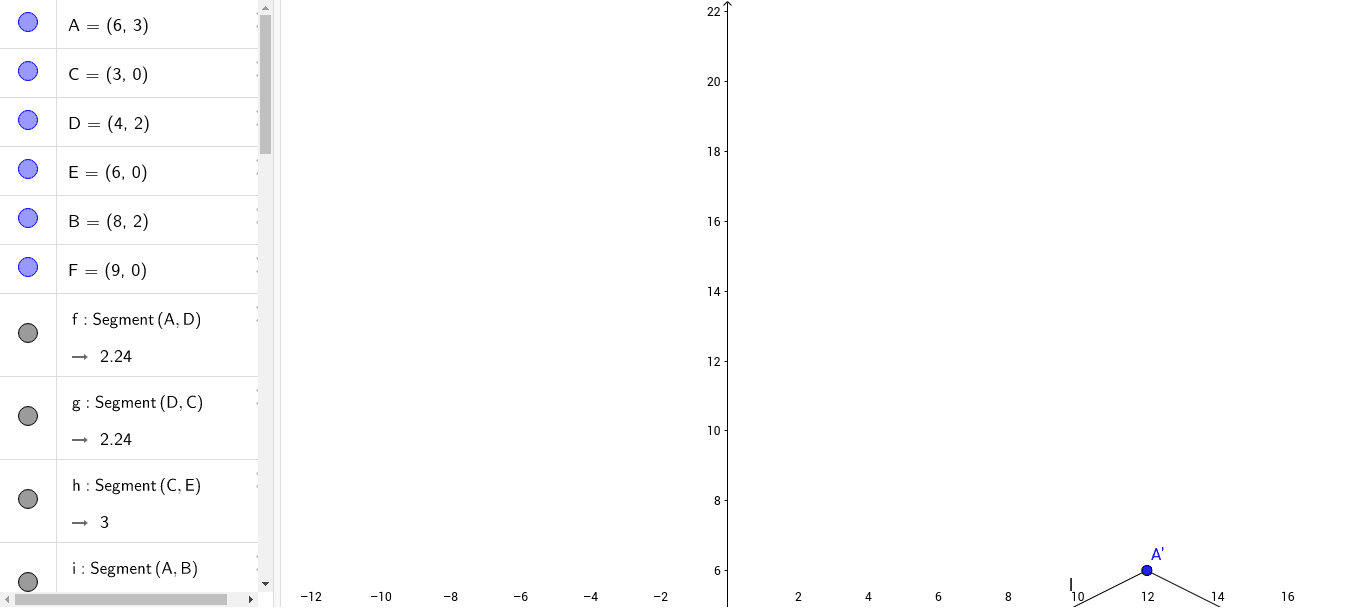
This example demonstrates how to create your own dilation using GeoGebra. Key mathematical concepts include similarity transformation and geometric construction. Using commands like Segment, various objects are constructed to illustrate the dilation. Suitable for middle school and above students or teachers.
GeoGebra Commands & Parameters
Segment(A, D) → fSegment(D, C) → gSegment(C, E) → hSegment(A, B) → iSegment(B, F) → jSegment(F, E) → kSegment(A', D') → lSegment(D', C') → mSegment(A', B') → nSegment(B', F') → pSegment(C', E') → qSegment(E', F') → rSegment(A'', D'') → sSegment(D'', C'') → tSegment(A'', B'') → aSegment(B'', F'') → bSegment(C'', E'') → cSegment(E'', F'') → d
AI Drawing Prompt Reference
Draw an enlargement transformation centered at point A. First, connect points A to D, D to C, and C to E. Then, connect A to B, B to F, and F to E. Use a slider to adjust the transformation scale, and repeat the steps to create the enlarged figure. Finally, adjust the slider again to create an even larger figure.
The prompt above was compiled from the original drawing commands and is for reference only.