
Constant Perimeter, Changing Area? — Exploring Area Variation with Fixed Perimet
Loading the math board and drawing, please wait…
In collections
CBSE Class VI Maths
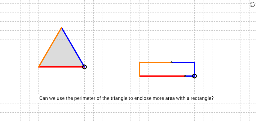
This GeoGebra example demonstrates a classic geometric question: can shapes with a constant perimeter have different areas? The answer is yes — for instance, a rectangle with a fixed perimeter can be stretched into a thin strip or compressed toward a square, yielding different areas, while a circle encloses the maximum area for a given perimeter. The construction includes polygons (poly1, poly2) and a circle, with draggable points or sliders that change the shape while the perimeter (perim) and area (areaT) are computed and displayed in real time. Core mathematical concepts include perimeter, area, extremum (isoperimetric inequality), and functional dependence between variables. Key GeoGebra commands used: Polygon, Area, Circle, Point, Segment, OrthogonalLine, Intersect, Perimeter, Distance, and If, along with auxiliary points (A, B, C, D, E, F, G, H, I, K), segments, perpendicular lines, intersection points, and text labels (text1). This is suitable for middle and high school students learning geometric measurement, function thinking, and basic optimization, as well as for intuitive exploration of the isoperimetric theorem.
GeoGebra Commands & Parameters
Polygon(A, B, 3) → poly1, a, b, c, CArea(poly1) → areaTCircle(D, perim / 2) → dPoint(d) → ESegment(D, E) → ePoint(e) → FOrthogonalLine(F, e) → f_1OrthogonalLine(D, e) → gCircle(F, E) → hIntersect(h, f_1, 2) → GOrthogonalLine(G, f_1) → iIntersect(g, i) → HPolygon(D, F, G, H) → poly2, d_1, f, g_1, f_2Perimeter(poly2) → kCircle(D, perim / 3) → pIntersect(p, d_1, 1) → ISegment(D, I) → a_1Segment(I, F) → b_1Segment(F, G) → b_2Segment(D, F) → lIntersect(r, xAxis, 2) → KDistance(I, K) → nCircle(F, a - l) → sOrthogonalLine(F, xAxis) → tIntersect(s, t) → L, MSegment(F, M) → e_1Segment(H_2, D) → c_2If(poly2 > poly1, 1, 0) → qSegment(H_2, H) → c_1Segment(M, G) → h_1Circle(H, c - c_2) → k_1Intersect(k_1, i) → J, NSegment(H, J) → i_1Segment(J, G) → j_1
AI Drawing Prompt Reference
Draw an equilateral triangle and compute its area. Using the midpoint of one side as the center, draw a circle with radius equal to half the fixed perimeter. Pick a point on the circle and connect it to the center to form a segment. Through a point on this segment, construct perpendicular lines to build a rectangle with the same perimeter as the triangle. Also draw a circle with radius one-third of the perimeter, and construct auxiliary segments and intersection points to compare areas of different shapes under equal perimeter.
The prompt above was compiled from the original drawing commands and is for reference only.