
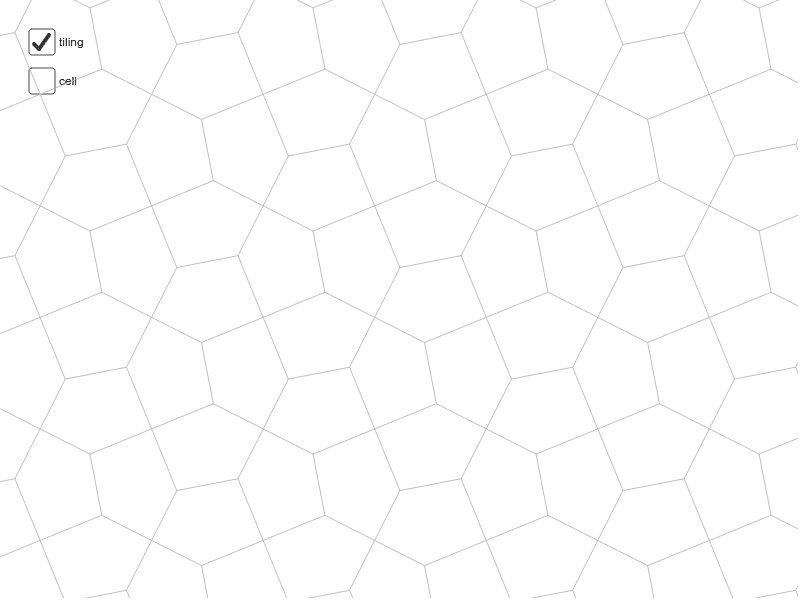
Cairo Tiles with p4 Symmetry
Loading the math board and drawing, please wait…
This example demonstrates Cairo tiles with p4 symmetry. It involves concepts such as symmetry and isosceles triangles. Using GeoGebra commands like Midpoint, Segment, Mirror, Vector, and Rotate, you can construct Cairo tiles with p4 symmetry. Suitable for middle school and above students or teachers.
GeoGebra Commands & Parameters
Midpoint(A, B) → EMidpoint(C, A) → HMidpoint(H, E) → PMidpoint(C, B) → ISegment(K, N) → hSegment(J, K) → eMirror(K, P) → OSegment(K, O) → mSegment(O, L) → fSegment(O, M) → gMidpoint(B, D) → FMidpoint(D, C) → GVector(A, B) → uVector(A, C) → vVector(C, D) → wVector(B, D) → aSegment(H, F) → bSegment(E, G) → cRotate(cell1, 90*°, I) → cell2Rotate(cell1, 180*°, I) → cell3Rotate(cell1, 270*°, I) → cell4Sequence(Translate[Sequence[Translate[tile, Vector[(n * u)]], n, -3, 3], Vector[(m * v)]], m, -3, 3) → tilingSegment(H, I) → kSegment(E, I) → l
AI Drawing Prompt Reference
Draw Cairo tiles with p4 symmetry. Start by drawing the midpoints of isosceles triangles and connecting them with line segments. Then, use mirroring and rotating operations around specific points to generate symmetric patterns. Finally, extend the pattern through translation to form the complete tile pattern.
The prompt above was compiled from the original drawing commands and is for reference only.