
Sunken Treasure: Visualizing the Knapsack Problem with Geometric Selection
Loading the math board and drawing, please wait…
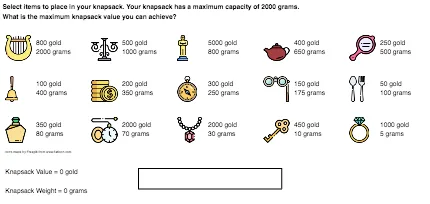
This example uses the “sunken treasure” metaphor to demonstrate the knapsack problem: selecting an optimal subset of items when a capacity (constraint) limits what you can carry. It highlights the core ideas of combinatorial optimization, constrained selection, and reasoning about achievable best outcomes. In the construction, GeoGebra’s Flatten and Polygon commands are used to restructure and render the graphic elements—flattening nested/grouped objects into a usable set and drawing polygonal outlines for clear item/option visualization. The model includes multiple item objects (e.g., watch, teapot, statue, ring, perfume, mirror, key, harp, cutlery, compass, coins, bell, candlestick, necklace, glasses) together with box/container variants (boxes and box*) and interactive selection states (select*), emphasizing which items become candidates under different choices. Suitable for middle/high school learning, introductory optimization units, and teaching where visual intuition helps explain knapsack-style decision making.
GeoGebra Commands & Parameters
Flatten(Sequence[Sequence[Polygon[{(i, j), (i + 3.7, j), (i + 3.7, j + 1.5), (i, j + 1.5)}], i, -0.6, -0.6 + (4 * 4.2), 4.2], j, 7.9, 7.9 - (2 * 2), -2]) → boxesPolygon({(6, 2.75), (13, 2.75), (13, 1.75), (6, 1.75)}) → progressFullPolygon({(6, 2.75), (13, 2.75), (13, 1.75), (6, 1.75)}) → progressOverPolygon({(6, 2.75), (6 + (7 * percentage), 2.75), (6 + (7 * percentage), 1.75), (6, 1.75)}) → progress
AI Drawing Prompt Reference
Draw a coordinate-plane diagram using a “sunken treasure / knapsack capacity” metaphor. First, create several rectangular container outlines to represent loading options under a capacity constraint, including box variants (with and without a star) as candidate spaces. Then, in the same scene, place a horizontal progress frame (a long rectangle) and draw two related polygonal outlines to depict full progress and the current over/covered state. Finally, add a polygonal progress shape whose right edge shifts according to a percentage value, showing how the achievable progress changes with different choices.
The prompt above was compiled from the original drawing commands and is for reference only.