
Collecting Carrots: A Greedy Algorithm Fails in Geometric Optimization
Loading the math board and drawing, please wait…
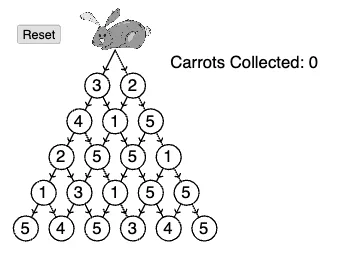
This example demonstrates, via a “collecting carrots” geometric placement and selection process, how a greedy algorithm can fail to achieve the global optimum when it commits to locally best choices. It highlights optimization problem modeling, the decision-making gap between local and global optimality, and geometric characterizations related to slope/difference-type relationships, using structured configurations such as circles and isosceles triangle setups. Construction-wise, it is built using GeoGebra commands extracted from the construct summary: Flatten (to linearize nested lists), Zip (to pair elements across lists), Element (to access objects by index), and Segment (to form connecting segments). The scene also relies on objects such as circleCenters and circleBorders (circle definitions), carrotsCollected (the collected/score outcome), circleValues (values associated to circles), and condition/group markers like isA1…isE6 and isOnLevel1…isOnLevel5 to represent level-based criteria and candidate membership. Suitable for advanced secondary school through early undergraduate study, especially for lessons connecting algorithmic reasoning with geometric construction and optimization counterexamples.
GeoGebra Commands & Parameters
Flatten(Sequence[Sequence[(i, j), i, 1 + ((j - 1) * 0.5), 6 - ((j - 1) * 0.5), 1], j, 5, 1, -1]) → circleCentersZip(Circle[A, 0.35], A, circleCenters) → circleBordersElement(circleBorders, 1) → circleA1Element(circleBorders, 2) → circleA2Element(circleBorders, 3) → circleB1Element(circleBorders, 4) → circleB2Element(circleBorders, 5) → circleB3Element(circleBorders, 6) → circleC1Element(circleBorders, 7) → circleC2Element(circleBorders, 8) → circleC3Element(circleBorders, 9) → circleC4Element(circleBorders, 10) → circleD1Element(circleBorders, 11) → circleD2Element(circleBorders, 12) → circleD3Element(circleBorders, 13) → circleD4Element(circleBorders, 14) → circleD5Element(circleBorders, 15) → circleE1Element(circleBorders, 16) → circleE2Element(circleBorders, 17) → circleE3Element(circleBorders, 18) → circleE4Element(circleBorders, 19) → circleE5Element(circleBorders, 20) → circleE6Segment(root, A1) → fSegment(root, A2) → gSegment(A1, B1) → hSegment(A1, B2) → iSegment(A2, B2) → jSegment(A2, B3) → kSegment(B1, C1) → lSegment(B1, C2) → mSegment(B2, C2) → nSegment(B2, C3) → pSegment(B3, C3) → qSegment(B3, C4) → rSegment(C1, D1) → sSegment(C1, D2) → tSegment(C2, D2) → aSegment(C2, D3) → bSegment(C3, D3) → cSegment(C3, D4) → dSegment(C4, D4) → eSegment(C4, D5) → f_1Segment(D1, E1) → g_1Segment(D1, E2) → h_1Segment(D2, E2) → i_1Segment(D2, E3) → j_1Segment(D3, E3) → k_1Segment(D3, E4) → l_1Segment(D4, E4) → m_1Segment(D4, E5) → n_1Segment(D5, E5) → p_1Segment(D5, E6) → q_1Zip(Text[A, B - (0.15, 0.15)], A, circleValues, B, circleCenters) → circleLabels
AI Drawing Prompt Reference
Draw a geometric figure consisting of six equilateral triangles and five circles. Each circle has a radius of 0.35 and is centered at specific points. Triangles and circles are connected by line segments to form a complex path. Start by drawing the circle centers, then draw the circles, followed by the vertices of the triangles, and finally connect the circles and triangle vertices with line segments to form the path.
The prompt above was compiled from the original drawing commands and is for reference only.