
Style Bar: Adjusting Visual Properties of Geometric Objects in GeoGebra
Loading the math board and drawing, please wait…
In collections
Learn GeoGebra Classic
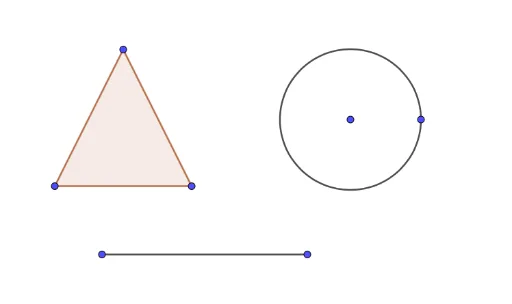
This example demonstrates the functionality of the Style Bar in GeoGebra, focusing on how to adjust visual properties such as color, line thickness, fill opacity, and dash style for geometric objects like polygons, circles, and segments. The core mathematical concepts involved include basic geometric elements (polygons, circles, segments) and their relationships, such as intersections and tangencies. The construction uses GeoGebra commands Polygon, Circle, and Segment, creating objects A, B, C, t1, c, a, b, D, E, d, F, G, and f, which form a composite figure with a triangle, a circle, and several segments. This setup allows users to see real-time changes in object appearance when modifying style settings. It is suitable for middle school or high school math teachers and beginners learning GeoGebra's interface, serving as an introductory tutorial for customizing object styles to enhance clarity and visual appeal in geometric demonstrations.
GeoGebra Commands & Parameters
Polygon(A, B, C) → t1, c, a, bCircle(D, E) → dSegment(F, G) → f
AI Drawing Prompt Reference
Draw a figure consisting of a triangle, a circle, and a line segment. First, draw a triangle using points A, B, and C. Then, draw a circle with center D and passing through point E. Finally, draw a line segment connecting points F and G. Adjust the color, line width, fill opacity, and dash style of these shapes to enhance their visual appearance.
The prompt above was compiled from the original drawing commands and is for reference only.