
Snowflake Designer
Loading the math board and drawing, please wait…
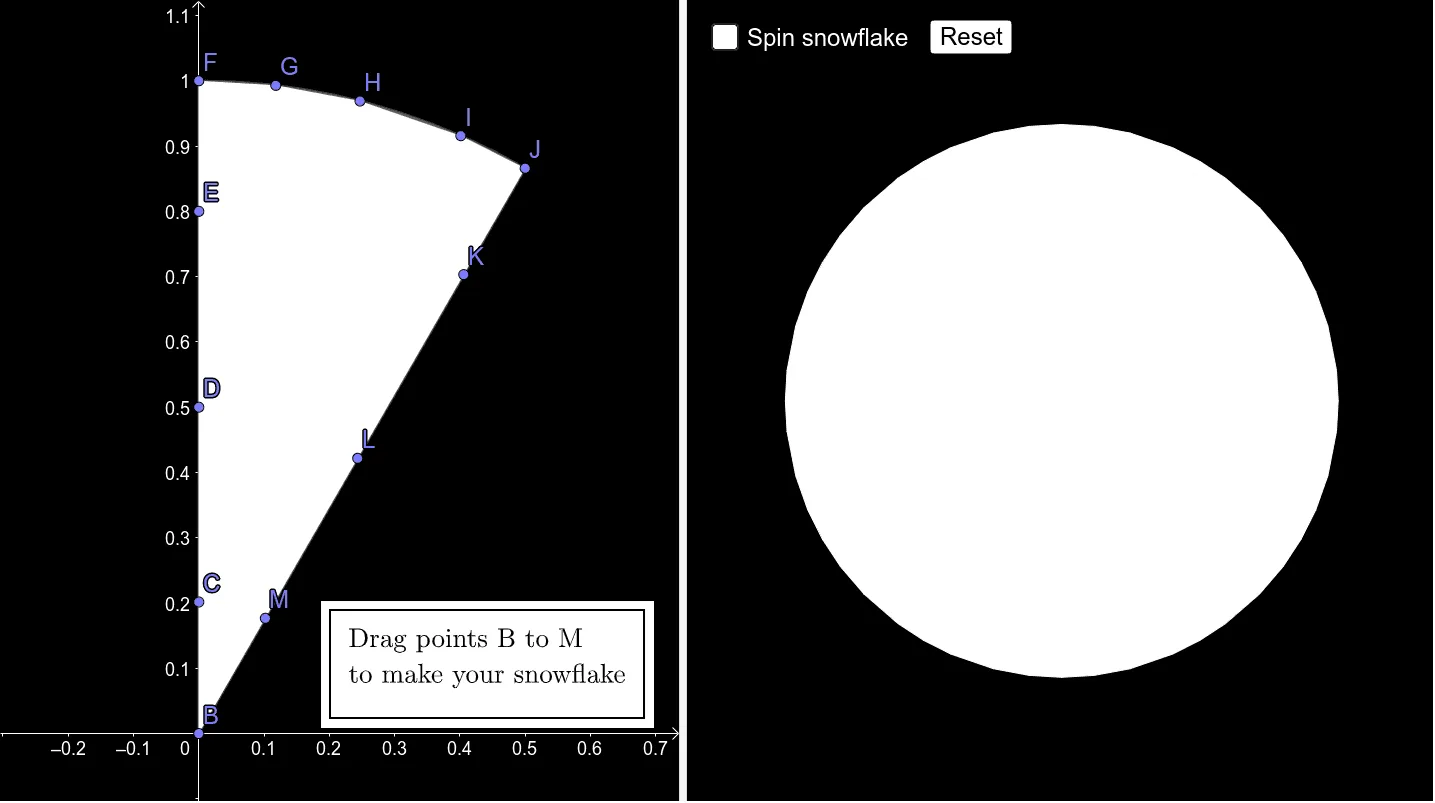
This example demonstrates the process of generating a snowflake, involving symmetry, rotation, and reflection. Using GeoGebra commands such as Point, Rotate, CircleSector, and Polygon, a beautiful snowflake pattern can be created. Suitable for middle school students and teachers to understand geometric transformations and symmetry.
GeoGebra Commands & Parameters
Point(yAxis) → ARotate(A, ((-π)) / 6, (0, 0)) → A'CircleSector((0, 0), A', A) → cPointIn(c) → BPointIn(c) → CPointIn(c) → DPointIn(c) → EPointIn(c) → FPointIn(c) → GPointIn(c) → HPointIn(c) → IPointIn(c) → JPointIn(c) → KPointIn(c) → LPointIn(c) → MPolygon({B, C, D, E, F, G, H, I, J, K, L, M}) → poly1Mirror(poly1, yAxis) → poly1'Sequence(Rotate[{poly1, poly1'}, (π / 3 * nn)], nn, 1, 6) → l1Rotate(l1, rot) → l1'
AI Drawing Prompt Reference
Start at the origin, draw a circular sector centered at the origin, with one radius along the y-axis and the other rotated 30 degrees counterclockwise from the y-axis. Place 12 random points inside this sector, and connect them in order with straight segments to form a closed polygon. Reflect this polygon across the y-axis to get its mirror image. Then, take both polygons together and rotate them around the origin in steps of 60 degrees, repeating 6 times, to create a full snowflake pattern with sixfold rotational symmetry.
The prompt above was compiled from the original drawing commands and is for reference only.