
Rotate Triangle
Loading the math board and drawing, please wait…
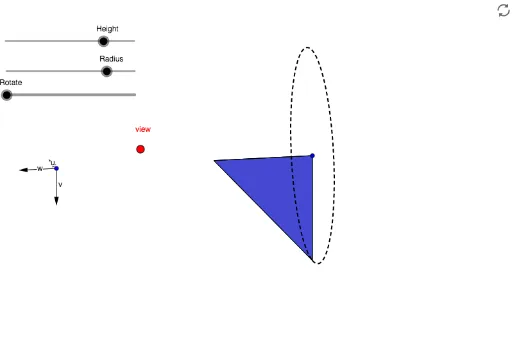
This example demonstrates how to rotate a triangle using GeoGebra commands such as Vector, OrthogonalLine, Translate, and Polygon. Key mathematical concepts include triangle properties and rotation transformations. Suitable for middle school and above students learning geometric transformations.
GeoGebra Commands & Parameters
Vector(B_1, X) → uVector(B_1, Y) → vOrthogonalLine(view, yAxis) → a_1OrthogonalLine(view, xAxis) → bVector(B_1, Z) → wSequence((x(A), y(A)) - (Radius * (((sin(0°) * sin(i°)) * w) + ((cos(0°) * sin(i°)) * u) - (cos(i°) * v))), i, 0, k, n) → liste2Translate(A, Vector[(Height * w)]) → A'Sequence(Polygon[A, Element[liste2, i], A'], i, 0, Rotate) → liste4Polygon(A, A', Element[liste2, Rotate]) → poly1, i, a_2, a'CurveCartesian(x(A - (Radius * (((0 * sin(i)) * w) + (sin(i) * u) - (cos(i) * v)))), y(A - (Radius * (((0 * sin(i)) * w) + (sin(i) * u) - (cos(i) * v)))), i, 0, 6.283185307179586) → eSegment(A', A) → g_1
AI Drawing Prompt Reference
Draw a triangle and rotate it around a point. First, create a triangle, then define three vectors u, v, and w. Next, create two perpendicular lines a1 and b around u and v. Using vector w and u, v, rotate the triangle around its vertices to generate a series of new points, and connect these points to form new polygons. Finally, draw the path of the triangle during the rotation process.
The prompt above was compiled from the original drawing commands and is for reference only.