
Rectangles: Perimeter vs Area — Maximum Area Demo
Loading the math board and drawing, please wait…
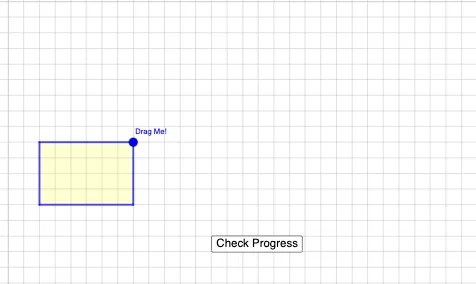
This GeoGebra example demonstrates how the area of a rectangle changes under a fixed perimeter constraint, highlighting the configuration that yields the maximum possible area. It connects the geometric setting with the algebraic structure A = ab and P = 2(a+b), turning the constraint into a product-based relationship. The construction emphasizes optimization under constraint and the characteristic curve behavior linked to products and root/hyperbola-like relationships. Build-wise, it uses Intersect to locate key intersection points, PointIn to determine whether points lie inside the relevant polygon region, Polygon to draw the rectangle and auxiliary shapes, and Midpoint plus Centroid to define symmetric/central reference points for labeling and structure. Interactive objects (e.g., A, B, q1, a, b, together with helper objects like f, g, o) and UI elements (button1, text1–text6) guide the visualization toward the maximum-area result. Suitable for high-school advanced geometry/algebra and early university optimization/graphing lessons.
GeoGebra Commands & Parameters
Intersect(xAxis, yAxis) → APointIn(x ≥ 1 ∧ y ≥ 1) → BPolygon(A, (x(B), 0), B, (0, y(B))) → q1, a, f, b, gMidpoint(g) → CMidpoint(b) → DMidpoint(f) → EMidpoint(a) → FCentroid(q1) → G
AI Drawing Prompt Reference
Draw a rectangle with a fixed perimeter to demonstrate how its area changes with side lengths, highlighting the configuration for maximum area. The rectangle is defined by the intersection of the coordinate axes and a point in the first quadrant. Plot the area and perimeter functions, marking the rectangle's centroid, midpoints of its sides, and the intersection points of the area and perimeter functions. Use auxiliary lines to connect these points, showing the geometric relationships and the maximum area configuration.
The prompt above was compiled from the original drawing commands and is for reference only.