
Parametric Surface Construction
Loading the math board and drawing, please wait…
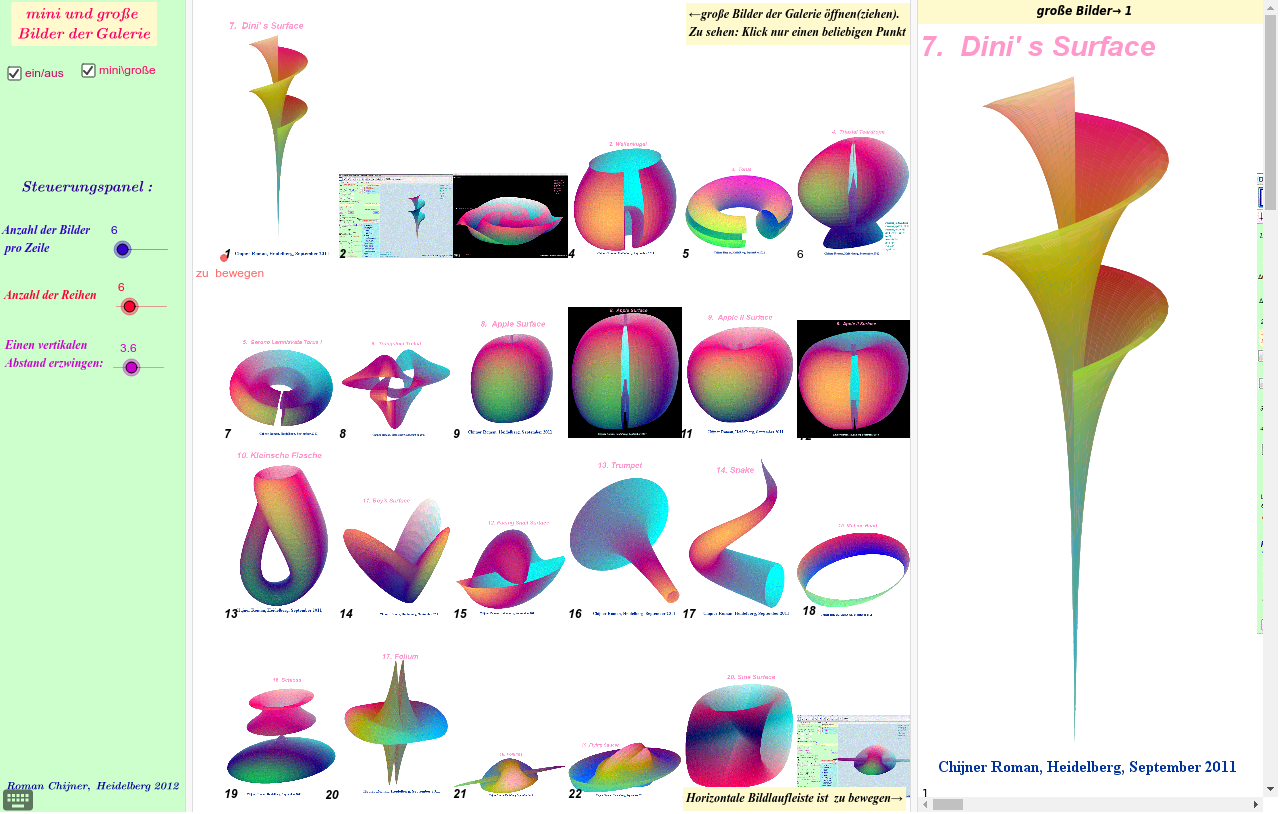
This example demonstrates how to draw parametric surfaces using GeoGebra4.2. Key mathematical concepts include parametric equations and 3D vectors. Using commands like Corner, If, Segment, Point, etc., complex surface shapes can be constructed. Suitable for high school and above students or teachers.
GeoGebra Commands & Parameters
Corner(4) → W04Corner(1) → W01If(e, y(B), y(W01) + (Bild - 1) * sy) → y0Corner(2) → W02Segment(W01, W02) → dPoint(d) → EIf(e, x(B), x(E)) → x0If(e, Ny, 40) → Ny1If(e, Nx, 1) → Nx1If(e, c, sy) → yWSequence(y(C0 - yW * (j - 1)), j, 1, Ny1) → mySequence(x(C0 + xW * i), i, 0, Nx1) → mxJoin(Sequence[Sequence[{(Element[mx, i], Element[my, j]), (Element[mx, i + 1], Element[my, j])}, i, 1, Nx1], j, 1, Ny1]) → l1Element(l1, b) → z0Sequence(Text[i], i, 1, (Nx1 + 1) * Ny1) → l2Element(l2, b) → z1Corner(3) → W03
AI Drawing Prompt Reference
Draw a parametric surface using parametric equations and 3D vectors. Start by defining four corner points W01, W02, W03, and W04, then create a plane area using these points. Next, use parameter e and point B to define a point E on the surface, and generate a series of x and y coordinates based on the x and y coordinates of E. Finally, construct a series of line segments based on these x and y coordinates to form the grid of the surface.
The prompt above was compiled from the original drawing commands and is for reference only.