
Open Middle: Constructing a Right Triangle
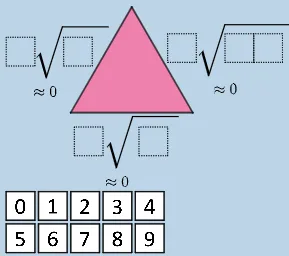
Loading the math board and drawing, please wait…
This example demonstrates an Open Middle-style construction where learners build a right triangle under given constraints and explore multiple valid solutions that share the same underlying geometry. It focuses on core ideas such as right triangles, circle-based constraints (using intersections to enforce angle conditions), and the Pythagorean relationship, often connected to geometric-mean interpretations. The construction follows the GeoGebra workflow indicated in the summary: Polygon is used to form triangle outlines; Circle creates the constraint circles; Intersect determines key vertices from circle/segment intersections; Segment provides the supporting edges; Radius sets circle sizes. FractionText is used to display quantitative relationships (lengths/ratios), while many labeled points/objects (e.g., A, B, C, H, P and various A0…A9, pic1…pic10, poly0/poly3/poly7) organize the evolving triangle family. Suitable for middle/high school geometry lessons, problem-solving practice, and exploratory inquiry that emphasizes constraints, construction, and verification.
GeoGebra Commands & Parameters
Polygon(A0, B, 4) → poly0, f, g, h, i, A, CPolygon(A3, H, 4) → poly3, j, k, l, m, E, GPolygon(A7, P, 4) → poly7, n, p, q, r, I, KPolygon(A1, D, 4) → poly1, s, t, a, b, M, OPolygon(A6, N, 4) → poly6, c, d, e, f_1, Q, SPolygon(A2, H2, 4) → poly2, k_1, l_1, m_1, n_1, W, ZPolygon(A8, A8 + (2, 0), 4) → poly8, g_1, h_1, i_1, j_1, U, VPolygon(A9, T, 4) → poly9, p_1, q_1, r_1, s_1, A_1, B_1Polygon(A4, J, 4) → poly4, t_1, a_1, b_1, c_1, C_1, D_1Polygon(A5, L, 4) → poly5, d_1, e_1, f_2, g_2, E_1, F_1Polygon(K_1, L_1, 4) → poly10, l_2, m_2, n_2, p_2, M_1, N_1Polygon(O_1, P_1, 4) → poly12, q_2, r_2, s_2, t_2, Q_1, R_1Polygon(S_1, T_1, 4) → poly13, a_2, b_2, c_2, d_2, U_1, V_1Polygon(C_2, D_2, 4) → poly15, i_3, j_3, k_3, l_3, E_2, F_2Polygon(G_2, H_2, 4) → poly16, m_3, n_3, p_3, q_3, I_2, J_2Polygon(G_{3}, H_{3}, 4) → poly17, m_{4}, n_{4}, p_{4}, q_{4}, I_{3}, J_{3}Polygon(C_{3}, D_{3}, 4) → poly14, i_{4}, j_{4}, k_{4}, l_{4}, E_{3}, F_{3}FractionText(u) → text4Polygon(I_1, J_1, 3) → poly11, h_2, i_2, j_2, A_2Segment(I_1, J_1) → k_2Segment(J_1, A_2) → e_2Segment(A_2, I_1) → f_3Circle(B_2, (p17 * sqrt(p15))) → c_3Circle(O_2, (p12 * sqrt((10 * p13) + p14))) → d_3Intersect(c_3, d_3, 1) → P_2Polygon(B_2, O_2, P_2) → t1, g_3, h_3, o_2Segment(B_2, O_2) → r_3Segment(O_2, P_2) → s_3Segment(P_2, B_2) → t_3Radius(c_3) → wRadius(d_3) → o_1
AI Drawing Prompt Reference
Draw a right triangle by first creating three triangle outlines with the polygon tool, then use the circle tool to create two constraint circles. Determine key vertices from the intersections of the circles and line segments, connect the vertices with line segments to form the triangle, and set the circle sizes with the radius tool. Finally, display the length ratios of the triangle's sides with the fraction text tool and label the key points and objects.
The prompt above was compiled from the original drawing commands and is for reference only.