
Midpoint and Length of a Line Segment by Sam Elias
Loading the math board and drawing, please wait…
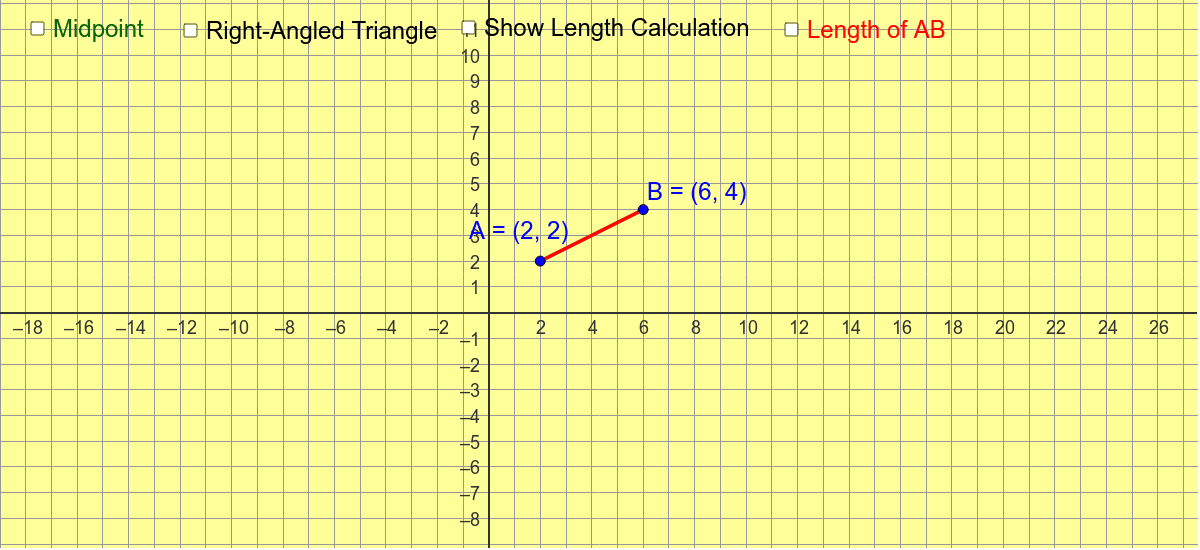
This example demonstrates how to change the position of line segment AB by dragging points A and B, and attempts to calculate the midpoint and length of line segment AB before using checkboxes. The construction summary mentions the use of Segment, LineBisector, Intersect, OrthogonalLine, Angle commands. Suitable for students at junior high school level and above to learn about line segment-related knowledge in coordinate geometry.
GeoGebra Commands & Parameters
Segment(A, B) → aLineBisector(a) → bIntersect(a, b) → MOrthogonalLine(B, xAxis) → dOrthogonalLine(A, d) → eIntersect(e, d) → CSegment(B, C) → fSegment(A, C) → gAngle(B, C, A) → αSegment(A, B) → iSegment(B, C) → nSegment(C, A) → p
AI Drawing Prompt Reference
Create a coordinate geometry figure with two draggable points connected by a segment. Draw the perpendicular bisector of this segment and mark its intersection with the segment as the midpoint. Through one point, draw a line perpendicular to the horizontal axis; through the other point, draw a line perpendicular to that vertical line. Let these two lines meet at a third point. Connect the third point to the original two points to form a right triangle, and label the angle at the third point. Show the lengths of the original segment and the two legs so that dragging the points updates the midpoint and lengths.
The prompt above was compiled from the original drawing commands and is for reference only.