
Locating Real Numbers on the Number Line
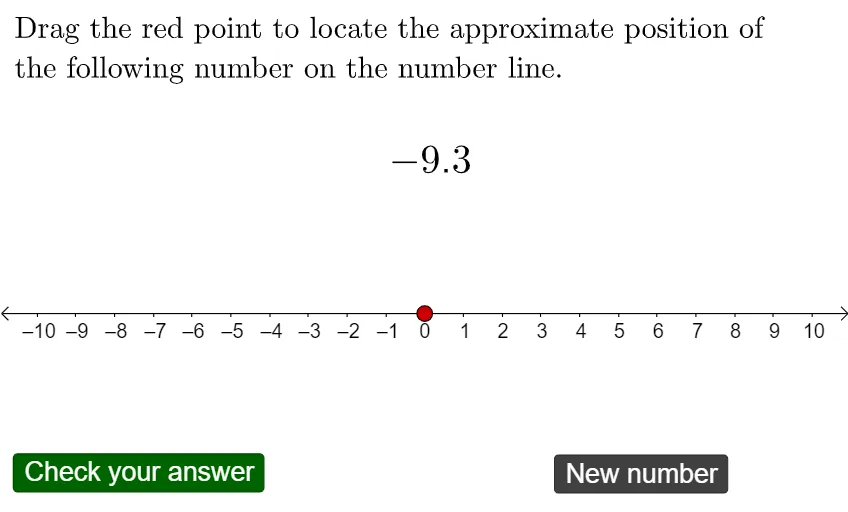
Loading the math board and drawing, please wait…
This example demonstrates how to locate real numbers on a number line, involving core math concepts like real numbers, number line, and absolute value. It is constructed using GeoGebra commands and objects such as RandomElement, Random, Sequence, Point, If, FractionText, and Text, making it suitable for middle school and above students for practicing real number concepts and number line positioning.
GeoGebra Commands & Parameters
RandomElement(typelist) → typeRandom(1, 9) → digit2Random(0, 9) → digit1Random(1, 99) → squarerootelementSequence(sqrt(k), k, 2, 100) → squarerootlistPoint(xAxis) → ARandomElement(signlist) → signtypeRandomElement(fractionlistlist) → fractionlistSequence(10, 20) → numlist1If(fractionlist ≟ 1, RandomElement[denomlist1], RandomElement[denomlist2]) → denominatorvalueSequence(30, 70) → numlist2If(fractionlist ≟ 1, RandomElement[numlist1], RandomElement[numlist2]) → numeratorvalueIf(type ≟ 1, squareroot, If[type ≟ 2, fraction, decimal]) → answernumberIf(signtype ≟ 1, answernumber, (-answernumber)) → answerfullSequence((("\sqrt{" * k) * "}"), k, 2, 100) → squarerootlisttextIf(signtype ≟ 1, "", "-") → numbersignFractionText(fraction) → fractiontextText(decimal) → decimaltextIf(type ≟ 1, squareroottext, If[type ≟ 2, fractiontext, decimaltext]) → number
AI Drawing Prompt Reference
Draw a number line and randomly mark the position of a real number on it. First, generate a random square root, fraction, or decimal. Then, mark the corresponding point on the number line based on the type of the number. If it's a square root, mark the square root expression; if it's a fraction, mark the fraction; if it's a decimal, mark the decimal. Finally, mark the positive or negative of the number based on the sign type.
The prompt above was compiled from the original drawing commands and is for reference only.