
Interactive Parallelepiped Demo
Loading the math board and drawing, please wait…
In collections
The GeoGebra's Toolbox for Teachers and Students
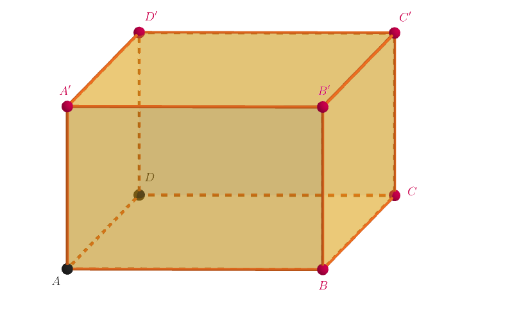
This example demonstrates the parallelepiped shape interactively, showcasing its structural features and spatial relationships. Key math concepts include solid geometry, vector operations, polygon construction, and 3D shape representation. It uses GeoGebra commands like PointIn, Line, Segment, Intersect, Polygon, and Prism, involving objects such as points, lines, polygons, and prisms. Suitable for high school students and educators for teaching solid geometry, spatial visualization, and mathematical modeling.
GeoGebra Commands & Parameters
PointIn(z = 0) → BLine(A, B) → aPointIn(z = 0) → CLine(C, a) → bSegment(B, C) → cLine(A, c) → dIntersect(b, d) → DPolygon(A, B, C, D) → poli1, a_1, b_1, c_1, d_1Prism(poli1, 8.276317796406957) → e, A', spigoloAE, spigoloBF, spigoloCG, spigoloDH, spigoloEF, spigoloFG, spigoloGH, spigoloEH, B', C', D', facciaABFE, facciaBCGF, facciaCDHG, facciaADHE, facciaEFGHSegment(A', C) → f
AI Drawing Prompt Reference
Draw a parallelepiped by first placing four points A, B, C, and D on a horizontal plane and connecting them to form a quadrilateral. Then move point A vertically to a new position A' to form the other end of the parallelepiped. Connect A' and C to form one of the parallelepiped's faces. Finally, draw all the faces of the parallelepiped.
The prompt above was compiled from the original drawing commands and is for reference only.