
Geometric Construction for Rectangle Area
Loading the math board and drawing, please wait…
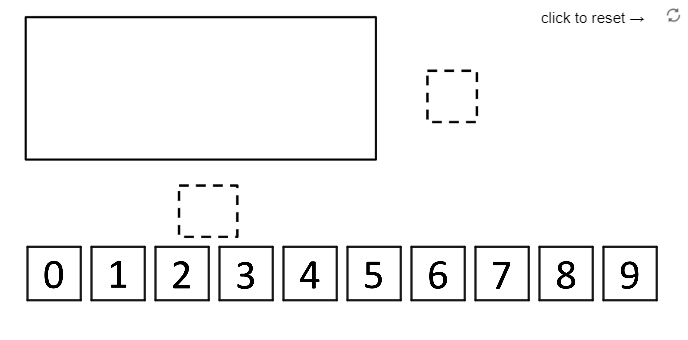
This GeoGebra example demonstrates how the area of a rectangle can be obtained and visualized through geometric construction and region-based visualization. It emphasizes understanding area as a measurable quantity derived from the rectangle’s defining boundary and its associated lengths/lines (including middle-line style reasoning when used in the construction). Key math concepts include rectangle area, polygon-based region definition, and decomposition/representation of an area by constructed sub-objects. Construction-wise, the build relies on GeoGebra’s polygon creation workflow—most directly the Polygon command—to generate the rectangle and its related region shapes (e.g., multiple point sets and polygon objects such as K_1, A2, A0, pic1–pic10, A0–A9, poly0, poly3, poly7, plus auxiliary points/objects). These objects work together to form the boundary and any subdivided pieces so the rectangle’s area can be computed or inspected visually. Suitable for middle/high school geometry, pre-calculus learning, and classroom demonstrations of area and geometric modeling.
GeoGebra Commands & Parameters
Polygon(A0, B, 4) → poly0, f, g, h, i, A, CPolygon(A3, H, 4) → poly3, j, k, l, m, E, GPolygon(A7, P, 4) → poly7, n, p, q, r, I, KPolygon(A1, D, 4) → poly1, s, t, a, b, M, OPolygon(A6, N, 4) → poly6, c, d, e, f_1, Q, SPolygon(A2, K_1, 4) → poly2, k_1, l_1, m_1, n_1, W, ZPolygon(A8, A8 + (2, 0), 4) → poly8, g_1, h_1, i_1, j_1, U, VPolygon(A9, T, 4) → poly9, p_1, q_1, r_1, s_1, A_1, B_1Polygon(A4, J, 4) → poly4, t_1, a_1, b_1, c_1, C_1, D_1Polygon(A5, L, 4) → poly5, d_1, e_1, f_2, g_2, E_1, F_1Polygon(G_1, H_1, 4) → poly10, h_2, i_2, j_2, k_2, I_1, J_1Polygon(G_2, H_2, 4) → poly11, h_3, i_3, j_3, k_3, I_2, J_2Polygon(G_3, H_3, 4) → poly12, h_4, i_4, j_4, k_4, I_3, J_3Polygon(G_4, H_4, 4) → poly13, h_5, i_5, j_5, k_5, I_4, J_4Polygon(G_5, H_5, 4) → poly14, h_6, i_6, j_6, k_6, I_5, J_5Polygon(G_6, H_6, 4) → poly15, h_7, i_7, j_7, k_7, I_6, J_6Polygon(G_7, H_7, 4) → poly16, h_8, i_8, j_8, k_8, I_7, J_7Polygon(G_8, H_8, 4) → poly17, h_9, i_9, j_9, k_9, I_8, J_8Polygon(G_9, H_9, 4) → poly18, h_{10}, i_{10}, j_{10}, k_{10}, I_9, J_9Polygon(G_{10}, H_{10}, 4) → poly19, h_{11}, i_{11}, j_{11}, k_{11}, I_{10}, J_{10}
AI Drawing Prompt Reference
In a 2D coordinate plane, construct a set of region pieces that together form the area of a rectangle. First, use given corner points and pairs of boundary points connected along the rectangle’s defining directions. Then create multiple four-vertex quadrilateral regions by selecting appropriate groups of points; some vertices come from points obtained by a fixed horizontal offset. Arrange the quadrilaterals so that adjacent pieces share edges or vertices, making the whole region continuous. The result should show the rectangle boundary and its visually decomposed area into several polygon faces.
The prompt above was compiled from the original drawing commands and is for reference only.