
Function Machine Visualization: Substitute Values to Reveal Outputs
Loading the math board and drawing, please wait…
In collections
Introduction to Linear Functions and Graphs
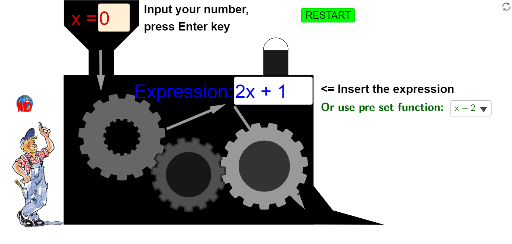
This example demonstrates a “function machine” that transforms input values into output values using a specified rule, while making the substitution process visually explicit. It focuses on core ideas such as function evaluation by substitution, linear functions and ratio/proportional relationships, and supporting mathematical interpretation via constructed geometric elements (with connections to integral-calculus style visualization depending on the displayed objects). Construction highlights include drawing Cartesian curves with CurveCartesian, using Circle and Semicircle for circular/arc components, and building structural shapes with Polygon and Segment. Key input/output points are marked with Point, while Vector is used to emphasize directional relationships in the transformation. The example also incorporates Mod for modular or cyclical mapping behavior and Element to retrieve derived geometric objects. For dynamic labeling and formula display, it uses Textfield, Text, LaTeX, and TextToUnicode, while Remove and RemoveUndefined keep the scene consistent by deleting invalid objects. Overall, it is well suited for middle-school and early high-school students learning what it means to apply a function rule, and it works as an interactive classroom demonstration for understanding function mappings and related algebraic reasoning.
GeoGebra Commands & Parameters
CurveCartesian(x(A) + ((r * (a + (1 / b * tanh((b * sin((n * t) + v)))))) * cos(t + v)), y(A) + ((r * (a + (1 / b * tanh((b * sin((n * t) + v)))))) * sin(t + v)), t, 0, 6.28319) → cCurveCartesian(x(B) + ((R * (a + (1 / b * tanh((b * sin((n * t) - v)))))) * cos(t - v)), y(B) + ((R * (a + (1 / b * tanh((b * sin((n * t) - v)))))) * sin(t - v)), t, 0, 6.28319) → dCircle(B, R + 0.9) → eCircle(A, r + 0.9) → gCircle(A, r + 0.9) → hCurveCartesian(x(A) + ((r * (a + (1 / b * tanh((b * sin((n * t) + v)))))) * cos(t + v)), y(A) + ((r * (a + (1 / b * tanh((b * sin((n * t) + v)))))) * sin(t + v)), t, 0, 6.28319) → iCurveCartesian(x(C) + ((R * (a + (1 / b * tanh((b * sin((n * t) - v)))))) * cos(t - v)), y(C) + ((R * (a + (1 / b * tanh((b * sin((n * t) - v)))))) * sin(t - v)), t, 0, 6.28319) → jCurveCartesian(x(C) + ((r / 2 * (a + (1 / b * tanh((b * sin((n * t) + v)))))) * cos(t + v)), y(C) + ((r / 2 * (a + (1 / b * tanh((b * sin((n * t) + v)))))) * sin(t + v)), t, 0, 6.28319) → oPolygon(D, E, F, G) → poly1, d_1, e_1, f_1, g_1Point(g_1) → HPoint(g_1) → IPolygon(H, I, J, K) → poly2, h_1, i_1, j_1, kPolygon(L, K, J, M) → poly3, l, k_1, j_2, mPoint(f_1) → NPolygon(N, O, P, F) → poly4, n_1, o_1, p, f_2Textfield(s) → ChampTexte1Vector(Q, S) → uTextfield(f) → ChampTexte2Vector(U, V) → wVector(W, Z) → zPolygon(C_1, M, L, D_1) → poly5, c_1, m_1, l_1, d_2Polygon(E_1, F_1, G_1, H_1) → poly6, e_2, f_3, g_2, h_2Semicircle(F_1, G_1) → qMod(v / °, 2) → t_1Semicircle(F_1, G_1) → p_1Segment(A_1, B_1) → a_1LaTeX(f) → textFromFunctionTextToUnicode(textFromFunction) → L_3Text("(" + s + ")") → textFormulaValueTextToUnicode(textFormulaValue) → L_nRemove(Insert[L_n, L_3, IndexOf[120, L_3]], {120}) → L_4Remove(Insert[L_n, L_4, IndexOf[120, L_4]], {120}) → L_5Remove(Insert[L_n, L_5, IndexOf[120, L_5]], {120}) → L_6Remove(Insert[L_n, L_6, IndexOf[120, L_6]], {120}) → L_7Remove(Insert[L_n, L_7, IndexOf[120, L_7]], {120}) → L_8Remove(Insert[L_n, L_8, IndexOf[120, L_8]], {120}) → L_9RemoveUndefined({L_3, L_4, L_5, L_6, L_7, L_8, L_9}) → L_{10}Element(L_{10}, Length[L_{10}]) → L_{11}LaTeX("= " + (UnicodeToText[L_{11}]), true) → textEnumFunction
AI Drawing Prompt Reference
This is a schematic of a function machine showing how input values transform into output values. The diagram includes marked input/output points, curves, circles, arcs, and polygons. The construction order is: first draw curves and circles, then add arcs and polygons, and finally use line segments and vectors to emphasize directional relationships. The overall presentation illustrates function mapping in an intuitive way, suitable for understanding the application of function rules.
The prompt above was compiled from the original drawing commands and is for reference only.