
Exploring Square Properties
Loading the math board and drawing, please wait…
In collections
Properties of Plane Shapes
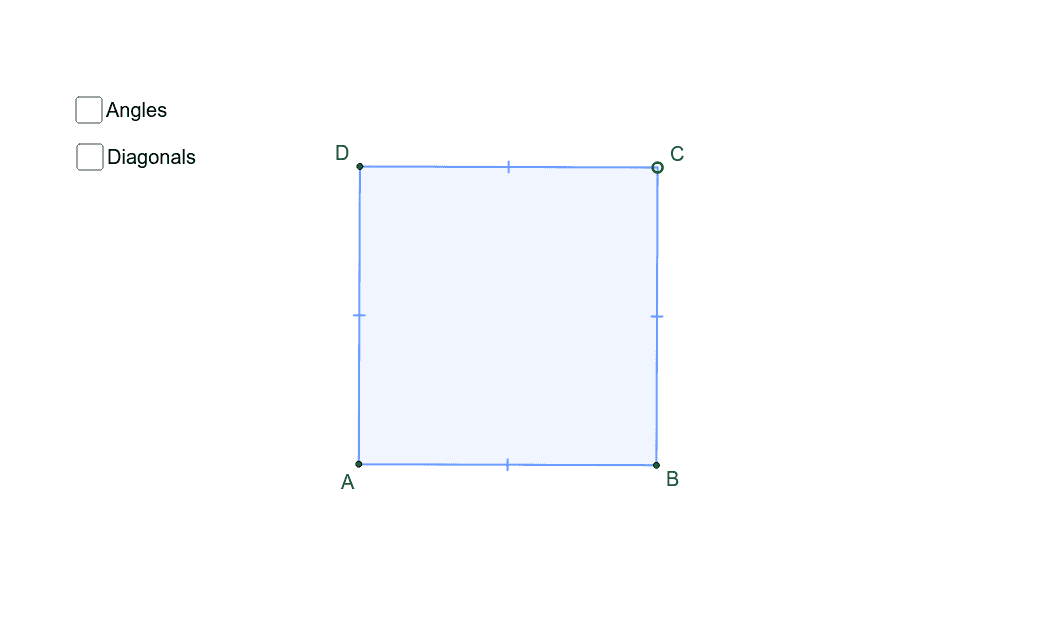
This example demonstrates the geometric properties of a square through an interactive tool. It covers core concepts like side length, angles, diagonals, incircle, and similarity transformations. The construction utilizes commands such as Rotate, Line, Point, Segment, Midpoint, Circle, OrthogonalLine, Intersect, Polygon, and Angle in GeoGebra. Suitable for middle school students and math enthusiasts for learning and exploring geometric figures.
GeoGebra Commands & Parameters
Rotate(E, -45*°, A) → E'Line(A, E') → lPoint(l) → CSegment(A, C) → aMidpoint(a) → XCircle(X, C) → cOrthogonalLine(X, a) → bIntersect(c, b, 2) → BIntersect(c, b, 1) → DPolygon(A, B, C, D) → poly1, a_1, b_1, c_1, dSegment(A, X) → eSegment(X, C) → fSegment(B, X) → gSegment(X, D) → jAngle(C, X, D) → αAngle(A, B, C) → βAngle(B, C, D) → γAngle(C, D, A) → δAngle(D, A, B) → εCircle(X, C) → pAngle(E', A, E) → ζAngle(X, D, C) → ηAngle(D, C, X) → θAngle(X, C, B) → ιAngle(C, B, X) → κAngle(X, B, A) → λAngle(B, A, X) → μAngle(X, A, D) → νAngle(A, D, X) → ξ
AI Drawing Prompt Reference
Draw a square to explore its geometric properties, including side length, angles, diagonals, incircle, and similarity transformations. Start by drawing one side of the square, then find its midpoint and draw a circle centered at the midpoint with the side length as the radius. Next, draw a perpendicular line to the side that intersects the circle at two points. Connect these points to the endpoints of the original side to form a new quadrilateral. Measure all interior angles and key segment lengths, and label the angles. Finally, rotate one side of the square by 90 degrees to form another side and label the rotation angle.
The prompt above was compiled from the original drawing commands and is for reference only.