
Exploring Absolute Value Graphs by Tim Brzezinski
Loading the math board and drawing, please wait…
In collections
Open Middle: Absolute Value Function Graph Exercises
This example demonstrates how to draw the graph of an absolute value function by adjusting parameters. Key mathematical concepts include absolute value functions, linear functions, and piecewise functions. Using GeoGebra commands such as PointIn, Textfield, Mode, and If, you can dynamically change the function parameters and observe the changes in the graph. Suitable for middle school and above students to learn about function graph transformations.
GeoGebra Commands & Parameters
PointIn(m) → DPointIn(m) → ATextfield(a) → InputBox1Textfield(b) → InputBox2Textfield(c) → InputBox3Textfield(d) → InputBox4Textfield(f) → InputBox5Textfield(g) → InputBox6Textfield(h) → InputBox7Textfield(i) → InputBox8Mode(l1) → l2If(Length[l2] ≟ 0, "No digits repeat!", "You have repeated digits.") → text5
AI Drawing Prompt Reference
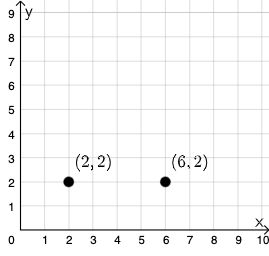
Create a graph of an absolute value function whose shape is controlled by adjustable parameters. First place two key points on the coordinate plane determined by a single parameter m, so they act as reference/endpoint positions for the construction. Provide several numeric input fields for parameters a, b, c, and d, plus f, g, h, and i, to modify the coefficients and offsets used in the function definition. Then draw the absolute value graph according to the resulting function structure (absolute value combined with the corresponding linear or piecewise rule). Include a short text message that changes depending on a condition about the length of a constructed parameter string, so users can see how parameter inputs affect the graph.
The prompt above was compiled from the original drawing commands and is for reference only.