
Equation C: Interactive Exploration of Conic Sections and Rotation Logic
Loading the math board and drawing, please wait…
In collections
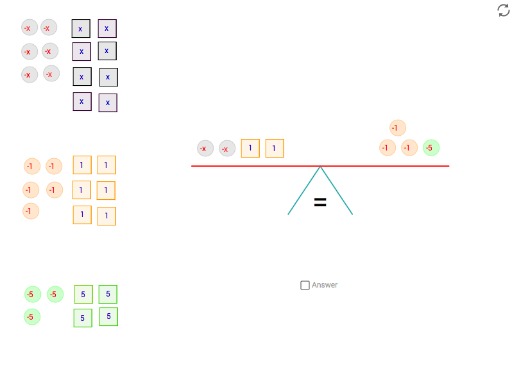
Solving equations by balancing
①This example demonstrates an interactive geometric construction combining conic sections, rotation, and logical conditions, where dynamic sliders and text inputs control the figure and display real-time angle and coordinate information. ②Core mathematical concepts include conic sections (circles, ellipses), rotational geometry, angle measurement, logical conditions (If statements), and point loci/position relationships. ③Construction highlights: GeoGebra commands such as Angle, Polygon, Point, Segment, Circle, Line, Intersect, Rotate, PointIn, If, and Textfield are used to build multiple auxiliary points (e.g., A_1, M2, K2) and their rotated counterparts, with conditional checks (like sign_xm2) controlling visibility, and text fields for parameter input. ④Suitable for high school or college-level analytic geometry, geometric transformations, and dynamic mathematics teaching, ideal for exploring combined applications of conic sections and rotational symmetry.
GeoGebra Commands & Parameters
Angle(angle_c, angle_b, angle_a) → anglemeasurePolygon(C_1, C_2, 4) → x_c, c_1, c_2, c_3, c_4, C_3, C_4Polygon(A_1, A_2, 4) → x_a, a_1, a_2, a_4, a_3, A_3, A_4Polygon(P_1, P_2, 4) → x_P, p_1, p_2, p_4, p_3, P_3, P_4Point(xAxis) → foot1Segment(fulcrum, foot1) → leg_bPoint(xAxis) → foot2Segment(fulcrum, foot2) → leg_aCircle(fulcrum, 4) → circleLine(fulcrum, xAxis) → parallelIntersect(circle, parallel, 2) → balance1Intersect(circle, parallel, 1) → balance2Segment(balance1, balance2) → balanceSegment(angle_a, angle_b) → anglesegment_aSegment(angle_b, angle_c) → anglesegment_bRotate(balance1, tip, fulcrum) → balance1'Rotate(balance2, tip, fulcrum) → balance2'Segment(balance1', balance2') → balance'PointIn(x_c) → APointIn(x_P) → CPointIn(x_a) → PIf(equal > tipequal, ">", If[equal < tipequal, "<", "="]) → signCircle(O, 0.25) → oCircle(D, 0.25) → dPolygon(Q_1, Q_2, 4) → x_Q, q_3, q_1, q_2, q_4, Q_3, Q_4PointIn(x_Q) → QPolygon(F_1, F_2, 4) → x_F, f_2, f_1, f_3, f_4, F_3, F_4Polygon(E_1, E_2, 4) → x_E, e_2, e_1, e_3, e_4, E_4, E_3PointIn(x_F) → EPointIn(x_E) → FPolygon(H_1, H_2, 4) → x_H, h_2, h_1, h_3, h_4, H_3, H_4Polygon(G_1, G_2, 4) → x_G, g_2, g_1, g_3, g_4, G_3, G_4PointIn(x_H) → HPointIn(x_G) → GPolygon(J_1, J_2, 4) → x_J, j_2, j_1, j_3, j_4, J_3, J_4Polygon(I_1, I_2, 4) → x_I, i_2, i_1, i_3, i_4, I_3, I_4PointIn(x_J) → IPointIn(x_I) → JCircle(K, 0.25) → kCircle(L, 0.25) → lCircle(S, 0.25) → sCircle(U, 0.25) → uCircle(R, 0.25) → rCircle(T, 0.25) → tCircle(W, 0.25) → wCircle(V, 0.25) → vCircle(Y, 0.25) → y_1Circle(X, 0.25) → x_1Circle(Z2, 0.25) → z2Circle(Z, 0.25) → zPolygon(M_1, M_2, 4) → x_M, m_2, m_1, m_3, m_4, P_7, P_8PointIn(x_M) → MPolygon(C'_1, C'_2, 4) → x_{C'}, c'_2, c'_1, c'_3, c'_4, Q_7, Q_8PointIn(x_{C'}) → C'Polygon(A'_1, A'_2, 4) → x_{A'}, a'_2, a'_1, a'_3, a'_4, P_{11}, P_{12}PointIn(x_{A'}) → A'Polygon(D'_1, D'_2, 4) → x_{D'}, d'_2, d'_1, d'_3, d'_4, Q_{12}, Q_{13}PointIn(x_{D'}) → D'Polygon(B'_1, B'_2, 4) → x_{B'}, b'_2, b'_1, b'_3, b'_4, P_{15}, P_{16}PointIn(x_{B'}) → B'Polygon(E'_1, E'_2, 4) → x_{E'}, e'_2, e'_1, e'_3, e'_4, Q_{17}, Q_{18}PointIn(x_{E'}) → E'Circle(N, 0.25) → nCircle(B, 0.25) → bCircle(J2, 0.25) → j'Circle(L2, 0.25) → l'Circle(K2, 0.25) → k'Circle(M2, 0.25) → m'Polygon(I'_2, I'_1, 4) → x_2, i'_2, i'_1, i'_3, i'_4, P_6, P_{10}PointIn(x_2) → I'Polygon(G'_2, G'_1, 4) → x_3, g'_2, g'_1, g'_3, g'_4, Q_6, Q_{10}PointIn(x_3) → G'Polygon(F'_2, F'_1, 4) → x_4, f'_2, f'_1, f'_3, f'_4, P_5, P_9PointIn(x_4) → F'Polygon(H'_2, H'_1, 4) → x_5, h'_2, h'_1, h'_3, h'_4, Q_5, Q_9PointIn(x_5) → H'Textfield(unknown) → answer
AI Drawing Prompt Reference
Create an interactive geometric figure combining conic sections and rotation. Start by drawing a circle centered at the origin, then draw a line parallel to the x-axis. Pick a point on the circle and another on the line, and connect them with a line segment. Rotate these points around the circle's center to form new points. Use these points and lines to construct additional shapes such as triangles, segments, circles, and their centers. Finally, adjust the visibility of the shapes based on angle and coordinate information, and display real-time angle and coordinate values.
The prompt above was compiled from the original drawing commands and is for reference only.