
Drawing the Image After Rotation
Loading the math board and drawing, please wait…
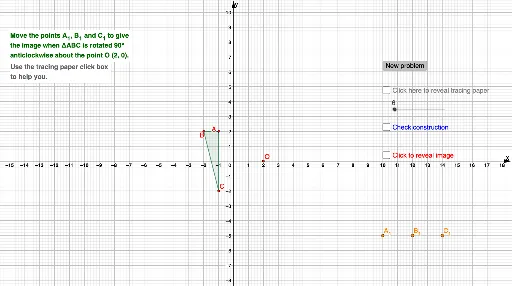
This example demonstrates how to draw images after a rotation. Key mathematical concepts include rotation transformation. Commands used include Random, Polygon, Segment, Rotate, Sequence, RandomElement, DynamicCoordinates, If, etc. Suitable for students at junior high school level and above learning geometric transformations.
GeoGebra Commands & Parameters
Random(-3, 3) → iRandom(-3, 3) → bRandom(-3, 3) → cRandom(-3, 3) → dRandom(-3, 3) → eRandom(-3, 3) → fRandom(-2, 2) → gRandom(-2, 2) → hPolygon(A, B, C) → t1, c_1, a_1, b_1Segment(A, B) → i_1Segment(B, C) → jSegment(C, A) → kRotate(A, θ, O) → A'Rotate(B, θ, O) → B'Rotate(C, θ, O) → C'Polygon(A', B', C') → t1', c', a', b'Polygon(G, D, E, F) → q1, g_1, d_1, e_1, f_1Rotate(G, θ, O) → G'Rotate(D, θ, O) → D'Rotate(E, θ, O) → E'Rotate(F, θ, O) → F'Polygon(G', D', E', F') → q1', g', d', e', f'Sequence((90° * i), i, 1, 3, 1) → l1RandomElement(l1) → lRotate(A, l, O) → A'_1Rotate(B, l, O) → B'_1Rotate(C, l, O) → C'_1Polygon(A'_1, B'_1, C'_1) → t1'_1, c'_1, a'_1, b'_1DynamicCoordinates(H, round(x(H)), round(y(H))) → A_1DynamicCoordinates(I, round(x(I)), round(y(I))) → B_1DynamicCoordinates(J, round(x(J)), round(y(J))) → C_1If(A_1 ≟ A'_1 ∧ B_1 ≟ B'_1 ∧ C_1 ≟ C'_1, "Correct!", "No. Try again.") → text1Polygon(A_1, B_1, C_1) → t2, n, p, q
AI Drawing Prompt Reference
Draw a triangle ABC, then rotate it around point O. Next, draw a rectangle GDEF and rotate it around point O. Then, randomly choose a rotation angle and rotate both the triangle ABC and the rectangle GDEF again. Observe the changes. Adjust the vertices of triangle ABC until they perfectly match the second rotation result of triangle A'B'C'.
The prompt above was compiled from the original drawing commands and is for reference only.