
Constructing an ASA Triangle with GeoGebra
Loading the math board and drawing, please wait…
In collections
Learn Geometry
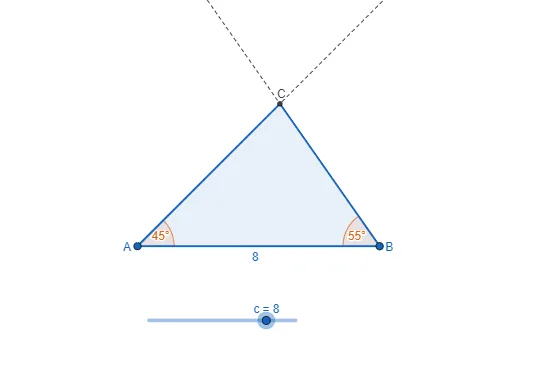
This example demonstrates how to construct a triangle given two angles and the included side (ASA condition) using GeoGebra's geometric construction tools. The core mathematical concept is the ASA congruence criterion, which states that a triangle is uniquely determined by two angles and the side between them. The construction steps include: using the Point tool to create points A and B as endpoints of the base segment, the Segment tool to draw side f, the Rotate tool to rotate the side around point B by angle α to form ray g, and similarly rotating around point A to form ray h; the Intersect tool finds their intersection point C, and the Polygon tool connects A, B, and C to form the triangle. The Angle tool is used to display angles α and β. This example is suitable for middle school geometry lessons, helping students visualize the ASA theorem and learn essential GeoGebra commands such as Rotate, Ray, Intersect, and Polygon.
GeoGebra Commands & Parameters
Point(Circle[A, c]) → BSegment(A, B) → fRotate(B, 45°, A) → B'Angle(B, A, B') → αRay(A, B') → gRotate(A, (-(55°)), B) → A'Angle(A', B, A) → βRay(B, A') → hIntersect(g, h) → CPolygon(A, B, C) → t1, c_1, a, b
AI Drawing Prompt Reference
Draw a triangle given two angles and the included side, demonstrating geometric construction. Start by drawing a line segment as the base, then from one endpoint of the base, draw two rays making angles of 45° and 55° with the base. The intersection of these rays determines the third vertex of the triangle. Connect the three vertices to form the triangle and label the two given angles.
The prompt above was compiled from the original drawing commands and is for reference only.