
Trig Ratios 2: Interactive Right-Triangle Sine, Cosine, and Tangent
Loading the math board and drawing, please wait…
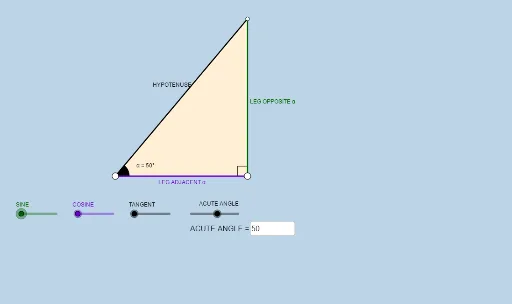
This GeoGebra example provides an interactive visualization of trigonometric ratios (sine, cosine, tangent) in a right triangle, showing how these ratios change as the acute angle varies. Core mathematical concepts include right-triangle trigonometry, side-angle relationships, and the dynamic behavior of trigonometric functions. The construction uses commands such as Segment, Ray, Circle, Rotate, Angle, OrthogonalLine, and Textfield to build a right triangle with a movable angle α, displaying real-time numeric values. Key objects include points A, B, C, segments a, b, c, angle α, and multiple auxiliary points and text labels. Suitable for middle-to-high school students learning basic trigonometry, and for teachers demonstrating the transition from geometric ratios to functional values.
GeoGebra Commands & Parameters
Segment(A, B) → fOrthogonalLine(B, f) → gRotate(B, (a * π / 180), A) → B'Angle(B, A, B') → αRay(A, B') → hCircle(B, 2) → cIntersect(c, g, 2) → CRay(B, C) → iIntersect(h, i) → DSegment(B, D) → jSegment(A, D) → kPolygon(A, B, D) → poly1, d, a_1, bRotate(B, If[0 < e ≤ 1, (-((e * (π / 2 - α)))), α - π / 2], D) → B'_1Rotate(D, If[0 < e ≤ 1, (-((e * (π / 2 - α)))), α - π / 2], D) → D'Segment(B'_1, D') → j'Rotate(A, If[0 < l ≤ 1, (α * l), α], A) → A'Rotate(B, If[0 < l ≤ 1, (α * l), α], A) → B'_2Segment(A', B'_2) → f'Rotate(B, If[0 < m ≤ 1, (m * π / 2), π / 2], B) → B'_3Rotate(D, If[0 < m ≤ 1, (m * π / 2), π / 2], B) → D'_1Segment(B'_3, D'_1) → j'_1Textfield(a) → InputBox1Angle(D, B, A) → β
AI Drawing Prompt Reference
Draw a right triangle with a movable acute angle α. Construct the three sides of the triangle using rotation and intersection, and create related lines and points based on angle α. Display the degree of angle α and dynamically adjust the lengths of the sides and the degree of angle β when changing angle α. Use a slider to control the size of angle α and build each part of the triangle through rotation and intersection operations.
The prompt above was compiled from the original drawing commands and is for reference only.