
Torus Spline
Loading the math board and drawing, please wait…
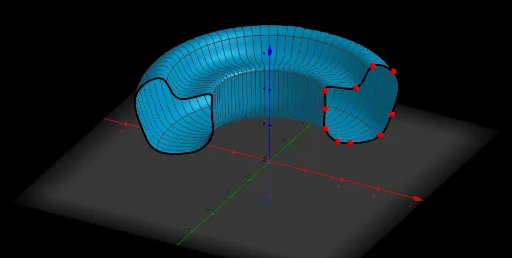
This example demonstrates how to construct a torus spline, a complex three-dimensional surface, using GeoGebra. Key mathematical concepts include surfaces, quadratic surfaces, parametric equations, rotational solids, and spatial geometry. The construction involves commands and objects such as Plane, PointIn, Spline, Surface, Distance, Circle, and Rotate. It is suitable for high school and above students studying spatial geometry, 3D modeling, and parametric equations, as well as for mathematical education demonstrations.
GeoGebra Commands & Parameters
Plane(A, B, O) → pPointIn(p) → CPointIn(p) → DPointIn(p) → EPointIn(p) → FPointIn(p) → HPointIn(p) → IPointIn(p) → JPointIn(p) → KPointIn(p) → LPointIn(p) → GSpline(l1, 3) → aSurface(a, c, zAxis) → bDistance(K, E) → KECircle(zAxis, F) → dCircle(zAxis, E) → eCircle(zAxis, D) → fCircle(zAxis, K) → gCircle(zAxis, J) → hCircle(zAxis, I) → kCircle(zAxis, H) → qCircle(zAxis, G) → rRotate(a, c, zAxis) → a'
AI Drawing Prompt Reference
Create a 3D torus spline surface. Start by defining a plane in space and placing multiple random points on it. Use these points to generate a smooth spline curve. Then rotate this curve around a vertical axis to form a torus-like surface of revolution. Additionally, draw several circles centered on the same vertical axis at different heights, intersecting the surface to show cross-sections. Finally, rotate a copy of the spline curve around the axis to create a symmetric curve, and mark the distance between two selected points. The result is a complex 3D geometric shape with auxiliary circles and a distance annotation.
The prompt above was compiled from the original drawing commands and is for reference only.