
Solve Linear Equation Example (2)
Loading the math board and drawing, please wait…
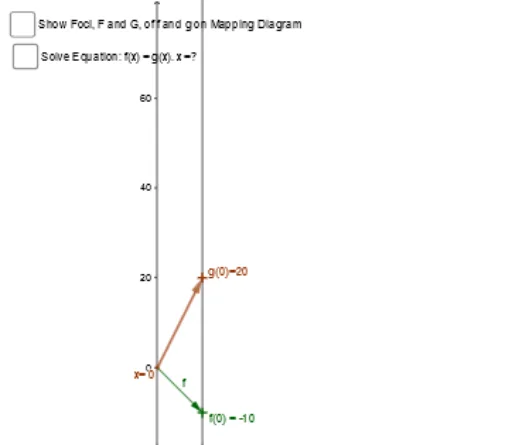
This example demonstrates how to solve linear equations and visualize their solutions geometrically using GeoGebra. Core math concepts include linear equations, coordinate geometry, and vector operations. Construction highlights involve commands like Intersect, Line, Vector, Segment, OrthogonalLine, and Textfield. Suitable for high school mathematics education to help students understand the solution methods and geometric representations of linear equations.
GeoGebra Commands & Parameters
Intersect(f_1, g) → ILine(x_1, y_2) → h_1Line(x_0, g_0) → i_1Intersect(i_1, h_1) → KLine(A, B) → kLine(x_1, y_1) → iIntersect(i, k) → FocusLine(Focus, K) → g_1Vector(A, B) → fVector(x_1, y_1) → vSegment(f_x, F) → c_1Segment(E, F) → dSegment(A, x_1) → eSegment(B, y_1) → hIntersect(g_1, a) → CLine(Focus, C) → nIntersect(n, e) → DIntersect(n, yAxis) → GSegment(G, C) → pVector(G, C) → uOrthogonalLine(I, q) → rIntersect(r, xAxis) → JVector(H, I) → wVector(I, J) → zVector(C, G) → sVector(I, H) → tVector(J, I) → u_1Textfield(f_1) → InputBox1Textfield(g) → InputBox2Vector(A, g_0) → v_1Line(K, g_0) → w_1
AI Drawing Prompt Reference
Draw a coordinate system with two linear equation lines and their intersection point. First, plot the two lines and mark their intersection. Construct a perpendicular line through this intersection. Then create two points, connect them with a segment, and draw a vector along it. From the intersection, drop perpendiculars to the axes, marking the feet. Add text boxes for the two line equations. Finally, connect several key points with segments and vectors to illustrate the geometric solution of the linear equations.
The prompt above was compiled from the original drawing commands and is for reference only.