
P4 Perimeter Example
Loading the math board and drawing, please wait…
In collections
P4 4M1 Perimeter 周界
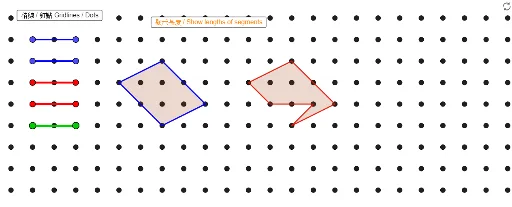
This example demonstrates how to use GeoGebra to draw and analyze perimeter problems in geometry. It involves core mathematical concepts such as perimeter calculation, geometric transformations, trigonometric function applications, means, area calculation, and parametric curves. The construction highlights commands like Segment, Sequence, and Polygon, along with objects like ShowDots, buttonGridDot, color schemes (e.g., Blue01a, Blue02a), and ListDots. It is suitable for high school mathematics education, focusing on geometric constructions and transformations.
GeoGebra Commands & Parameters
Segment(Blue01a, Blue01b) → Blue01Segment(Blue02a, Blue02b) → Blue02Segment(Blue03a, Blue03b) → Blue03Segment(Blue04a, Blue04b) → Blue04Segment(Red01a, Red01b) → Red01Segment(Red02a, Red02b) → Red02Segment(Red03a, Red03b) → Red03Segment(Red04a, Red04b) → Red04Segment(Blue05a, Blue05b) → Blue05Segment(Red05a, Red05b) → Red05Segment(Blue06a, Blue06b) → Blue06Segment(Red06a, Red06b) → Red06Sequence(Sequence[(s, t), s, 0, 25], t, -5, 13) → ListDotsSegment(Blue07a, Blue07b) → Blue07Segment(Blue08a, Blue08b) → Blue08Segment(Blue09a, Blue09b) → Blue09Segment(Blue10a, Blue10b) → Blue10Segment(Blue11a, Blue11b) → Blue11Segment(Blue12a, Blue12b) → Blue12Segment(Red07a, Red07b) → Red07Segment(Red08a, Red08b) → Red08Segment(Red09a, Red09b) → Red09Segment(Red10a, Red10b) → Red10Segment(Red11a, Red11b) → Red11Segment(Red12a, Red12b) → Red12Segment(Green01a, Green01b) → Green01Segment(Green02a, Green02b) → Green02Segment(Green03a, Green03b) → Green03Segment(Green04a, Green04b) → Green04Segment(Green05a, Green05b) → Green05Segment(Green06a, Green06b) → Green06Segment(Green07a, Green07b) → Green07Segment(Green08a, Green08b) → Green08Segment(Green09a, Green09b) → Green09Segment(Green10a, Green10b) → Green10Segment(Green11a, Green11b) → Green11Segment(Green12a, Green12b) → Green12Segment(Green13a, Green13b) → Green13Segment(Green14a, Green14b) → Green14Polygon(VPoly1Fa, VPoly1Fb, VPoly1Fc, VPoly1Fd) → Poly1F, SPoly1Fa, SPoly1Fb, SPoly1Fc, SPoly1FdPolygon(VPoly2Fa, VPoly2Fb, VPoly2Fc, VPoly2Fd, VPoly2Fe, VPoly2Ff) → Poly2F, SPoly2Fa, SPoly2Fb, SPoly2Fc, SPoly2Fd, SPoly2Fe, SPoly2FfPolygon(VPoly1Ma, VPoly1Mb, VPoly1Mc, VPoly1Md) → Poly1M, SPoly1Ma, SPoly1Mb, SPoly1Mc, SPoly1MdPolygon(VPoly2Ma, VPoly2Mb, VPoly2Mc, VPoly2Md, VPoly2Me, VPoly2Mf) → Poly2M, SPoly2Ma, SPoly2Mb, SPoly2Mc, SPoly2Md, SPoly2Me, SPoly2Mf
AI Drawing Prompt Reference
Draw a geometric figure composed of multiple blue, red, and green segments forming two polygons. First, draw a series of blue segments, then a series of red segments, and finally a series of green segments. Use these segments to construct two polygons, one with four vertices and the other with six vertices.
The prompt above was compiled from the original drawing commands and is for reference only.