
Lines #2: Writing Equations
Loading the math board and drawing, please wait…
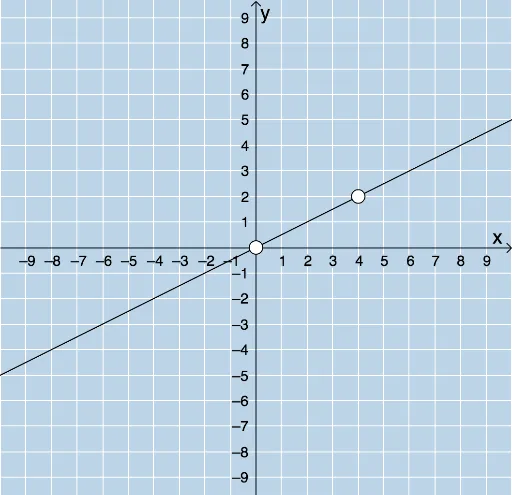
This example demonstrates how to draw lines and write their equations using GeoGebra. The key mathematical concepts involve linear equations, the equation of a line, and coordinate geometry. Construction points include using commands like RandomElement, Random, Line, FractionText, and objects such as Intersect, Segment. It is suitable for middle or high school mathematics to understand the relationship between line equations and their graphical representations.
GeoGebra Commands & Parameters
RandomElement(klist) → krandRandom(-10, 10) → bRandomElement(xmovelist) → randxRandomElement(ymovelist) → randyLine(A, B) → fFractionText(Slope[f]) → text1Intersect(h, i) → CSegment(A, C) → jSegment(C, B) → kPolygon(A, C, B) → poly1, b_1, a_1, c_1Textfield(l) → InputBox1
AI Drawing Prompt Reference
On a coordinate plane, first choose two points to determine a line and draw the line. From the line’s slope, create a fraction-style text label to display the slope information. Then take two given objects and construct their intersection point. Connect this intersection point by segments to the two corresponding endpoints on the line to form two segment sides. Finally, use three key points associated with the line to form a triangle outline on the plane, and include an editable text input field on the figure for later entry or adjustment of parameters related to the line equation.
The prompt above was compiled from the original drawing commands and is for reference only.