
Linear Function's Input x and Output y Values on a Cartesian Coordinate System
Loading the math board and drawing, please wait…
In collections
Introduction to Linear Functions and Graphs
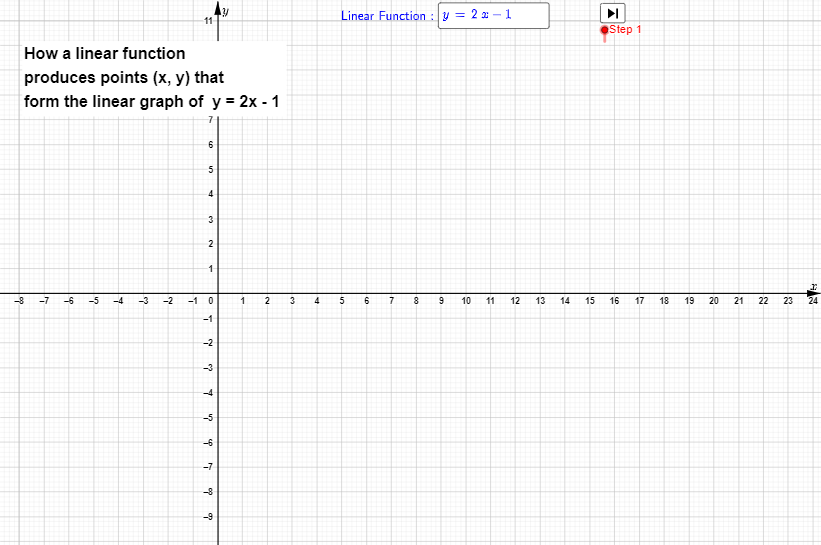
This example illustrates how the input x and output y values of a linear function are mapped to the x and y coordinates of a Cartesian coordinate system. It involves the core mathematical concept of linear functions. Using GeoGebra commands such as Textfield, Coefficients, If, Vector, etc., the graph of a linear function can be dynamically displayed. Suitable for students at the junior high school level and above to learn about the graph and properties of linear functions.
GeoGebra Commands & Parameters
Textfield(g) → InputBox1Coefficients(f_i) → l1If(Defined[Element[l1, 1]], Element[l1, 1], 0) → mIf(Defined[Element[l1, 2]], Element[l1, 2], 0) → cVector(P, (x(P), 0)) → uVector((x(P), 0), P) → vVector((0, y(P)), P) → wVector(P, (0, y(P))) → bText(x(P), (x(P), -0.8)) → text3Text(y(P), (-0.8, y(P))) → text4
AI Drawing Prompt Reference
Draw a straight line on a Cartesian coordinate system. The line's points are determined by input x values and corresponding y values. The x-axis and y-axis serve as the baseline. Points on the line can be represented using vectors. Text labels are used to annotate x and y values. Ensure the line is clear and the axes are visible.
The prompt above was compiled from the original drawing commands and is for reference only.