
Interactive Cone Construction in GeoGebra: Geometry and Angle Relationships
Loading the math board and drawing, please wait…
In collections
The GeoGebra's Toolbox for Teachers and Students
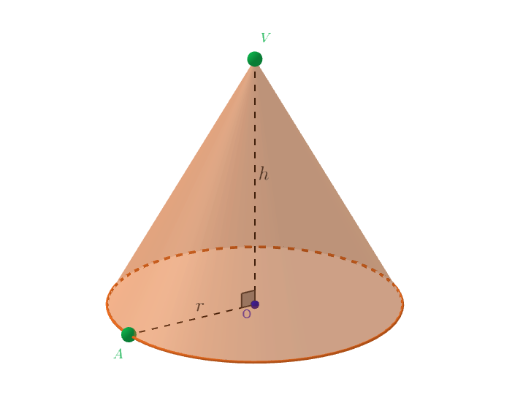
This GeoGebra example uses an interactive 3D construction to display a cone and investigate how its key geometric features and associated angles change. It focuses on the mathematical idea of generating and modeling a solid of revolution in coordinate space, emphasizing spatial relationships between the cone, a base circle, connecting segments (e.g., generatrices/axis-related lines), and a measurable angle at the cone’s key points. Core concepts include solid (3D) geometry, the role of a base circle, the relationship between defining points/segments and the resulting cone surface, and angle construction/measurement. Construction highlights from the provided command summary: it uses Point, Circle, and Segment to define crucial points and the base circle, PointIn to select a point constrained to a geometric locus/region, then applies Cone to build the 3D solid, and finally uses Angle to compute and display the relevant angle (with objects such as O, i, A, c, V, and α representing the key geometric entities). Suitable for secondary to early university learners studying 3D geometry, geometric construction, and interactive exploration of angle relationships.
GeoGebra Commands & Parameters
Segment((0, 0, 0), (0, 0, 7)) → iPointIn(z = 0) → ACircle(O, A, xOyPlane) → cPoint(i) → VCone(O, V, Segment[O, A]) → a, d, bSegment(O, A) → fSegment(A, V) → gSegment(V, O) → hAngle(V, O, A) → α
AI Drawing Prompt Reference
Create a three-dimensional cone with its geometric components. Start by drawing a circle on the xy-plane as the base, then construct a vertical line segment from the origin along the z-axis as the cone's axis. Select a point on this axis to serve as the cone's apex, connect the origin to a point on the circle to form the base radius, draw a line from that point on the circle to the apex to create the lateral generatrix, and also connect the apex back to the origin. Finally, measure the angle formed by the apex, origin, and a point on the circle to display the key angular relationship within the cone structure.
The prompt above was compiled from the original drawing commands and is for reference only.