
GeoGebra “Traversals” in Geometry: Vector-Driven Paths with Circles and Ellipses
Loading the math board and drawing, please wait…
In collections
El dominio del Tiempo (cinemática intuitiva)
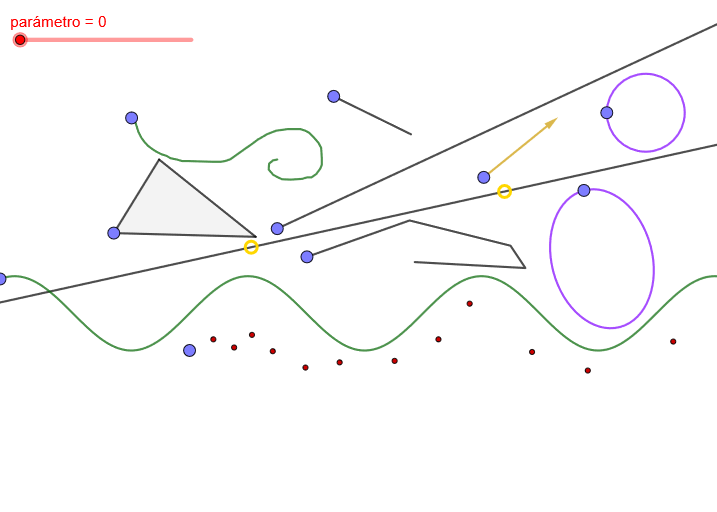
This example demonstrates how to create a GeoGebra “traversal/path” effect by combining multiple line segments, rays, and parametric geometric elements, where vector directions and constraints guide the construction. The key mathematical ideas include vector concepts (direction and magnitude), geometric constraints between points and lines, polygon assembly, and the use of circle and ellipse (conic sections) as controlling curves. Construction highlights: Segment, Ray, Line, and PolyLine build the path skeleton; Point defines control and key locations; Vector encodes directional information that updates connected points; Circle and Ellipse provide curved boundaries; Polygon forms closed shapes. Parameters such as a general parameter (and additional parameters like u, t1, s1/s2/s3) are used to control the positions and dependencies of objects (e.g., boceto1 and many labeled points), producing an interactive “traversal” visualization. Suitable for advanced secondary school, early university geometry modeling, and classroom exploration using dynamic geometry.
GeoGebra Commands & Parameters
Segment(P1, P2) → r1Ray(P3, P4) → r2Point(r2, parámetro) → CPoint(r1, parámetro) → BPoint(boceto1, parámetro) → ALine(R1, R2) → r3Point(r3, parámetro) → DPolyLine(P5, P6, P7, P8, P9) → pPoint(p, parámetro) → EVector(P10, P11) → uPoint(u, parámetro) → FCircle(P15, P16) → cirPoint(cir, parámetro) → HPolygon(P12, P13, P14) → t1, s1, s2, s3Point(t1, parámetro) → GEllipse(P17, P18, P19) → kPoint(k, parámetro) → IPoint(f, parámetro) → JPoint(l1, parámetro) → K
AI Drawing Prompt Reference
Draw a geometric traversal path figure consisting of multiple line segments, rays, and straight lines forming a path skeleton. Place several control points along the path with parameters controlling their positions. Add a vector representing directional information and create a dynamic point on it. Use circles and ellipses as curved boundaries, with points positioned on these curves. Construct a closed polygon shape with control points on its edges and vertices. The entire figure uses parameters to control point positions, creating a dynamic interactive geometric traversal visualization.
The prompt above was compiled from the original drawing commands and is for reference only.