
From Prism to Circle: Geometric Transformation and Tangent/Chord Ideas
Loading the math board and drawing, please wait…
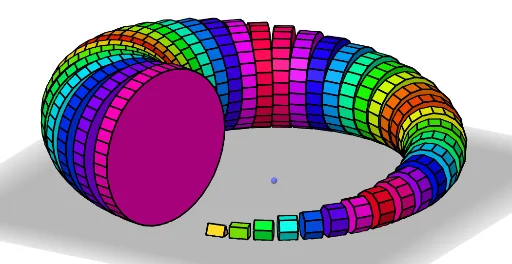
This GeoGebra example demonstrates how a prism (piecewise/linear) configuration can be transformed—via construction and rotation—into circle-related geometry, revealing a clear connection between polygonal structure and circular behavior. The key math ideas include circle geometry (chord/secant viewpoints), iterative point generation, and transformation-driven shape emergence. Construction highlights: Midpoint is used to define crucial reference points; Sequence generates an ordered set of points to approximate or step through the transition from a prism-like pattern to a circular one; Line draws the connecting segments and the secant/tangent-like lines needed for the circular characterization; Rotate performs the rotational sweep around a center to create circle correspondence; Element supports organizing/updating constructed objects. Named objects (e.g., A, B, n, C, and sequences like A1..A25, along with lines l1, l2, l3 and auxiliary lines l1', etc.) are used to control the animation/progression and visual emphasis. Suitable for secondary-school geometry, geometry-construction lessons, and exploratory activities on transformations and circle properties.
GeoGebra Commands & Parameters
Midpoint(B, A) → ESequence(Polygon[A, B, i, xOyPlane], i, 3, n) → l1Line(A, B) → fRotate(l1, 90°, f) → l1'Line(C, zAxis) → gSequence(Rotate[Element[l1', i], (0.15 * i), g], i, 1, Length[l1']) → l3Sequence(Prism[Element[l3, i], Step], i, 1, Length[l3]) → l2Element(l2, A1) → B1Element(l2, A2) → B2Element(l2, A3) → B3Element(l2, A4) → B4Element(l2, A5) → B5Element(l2, A6) → B6Element(l2, A7) → B7Element(l2, A8) → B8Element(l2, A9) → B9Element(l2, A10) → B10Element(l2, A11) → B11Element(l2, A12) → B12Element(l2, A13) → B13Element(l2, A14) → B14Element(l2, A15) → B15Element(l2, A16) → B16Element(l2, A17) → B17Element(l2, A18) → B18Element(l2, A19) → B19Element(l2, A20) → B20Element(l2, A21) → B21Element(l2, A22) → B22Element(l2, A23) → B23Element(l2, A24) → B24Element(l2, A25) → B25Element(l2, A26) → B26Element(l2, A27) → B27Element(l2, A28) → B28Element(l2, A29) → B29Element(l2, A30) → B30Element(l2, A31) → B31Element(l2, A32) → B32Element(l2, A33) → B33Element(l2, A34) → B34Element(l2, A35) → B35Element(l2, A36) → B36Element(l2, A37) → B37Element(l2, A38) → B38Element(l2, A39) → B39Element(l2, A40) → B40Element(l2, A41) → B41Element(l2, A42) → B42Element(l2, A43) → B43Element(l2, A44) → B44Element(l2, A45) → B45
AI Drawing Prompt Reference
Draw a prism shape that transforms into circular geometry through rotation and construction, showing the connection between the prism and the circle. Use midpoints to define key reference points, generate a sequence of points to approximate or step through the transition from the prism-like pattern to a circular one, draw connecting segments and tangent/secant-like lines, rotate the shape around a center to create circle correspondence, and use elements to organize and update constructed objects.
The prompt above was compiled from the original drawing commands and is for reference only.