
Finding the Area of Similar Figures Using Scale Factor
Loading the math board and drawing, please wait…
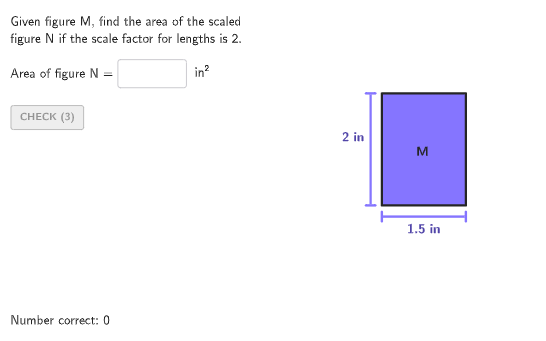
This interactive GeoGebra activity demonstrates how to find the area of similar figures when given the scale factor of their side lengths. The key mathematical concept is that the ratio of areas of similar figures equals the square of the scale factor (k²). The construction uses commands such as Polygon, Translate, Segment, and Text to create the figures, along with Textfield and InputBox for user input. Randomization is achieved through Shuffle, Element, and If commands to generate varied problems. Buttons like validate, showanswer, and btnNew provide immediate feedback and allow for multiple attempts. This resource is suitable for grades 6-8, helping students recognize the effect of scale factors on areas and apply formulas to solve word problems. It is ideal for classroom practice or self-paced learning.
GeoGebra Commands & Parameters
Shuffle(Sequence[1.5, 4, 0.5]) → randomList1, {2, 2.5, 3.5, 3, 4, 1.5}Element(randomList1, Mod[countQuestion, Length[randomList1]] + 1) → randomNum1Shuffle(Sequence[1, 4, 0.5]) → randomList2, {2, 4, 3.5, 1, 3, 2.5, 1.5}If(IsInteger[randomNum1], Element[randomList2, Mod[countQuestion, Length[randomList2]] + 1], floor(Element[randomList2, Mod[countQuestion, Length[randomList2]] + 1])) → randomNum2Shuffle(Sequence[1, 4, 0.5]) → randomList3, {1.5, 3, 4, 2, 1, 2.5, 3.5}If(IsInteger[randomNum1] ∧ IsInteger[randomNum2], Element[randomList3, Mod[countQuestion, Length[randomList3]] + 1], floor(Element[randomList3, Mod[countQuestion, Length[randomList3]] + 1])) → randomNum3Shuffle(Flatten[Sequence[{3, 4}, ii, 1, 5]]) → randomList4, {4, 4, 3, 3, 4, 4, 3, 3, 4, 3}Element(randomList4, Mod[countQuestion, Length[randomList4]] + 1) → randomNum4Shuffle({1, 2, 3}) → randomList5, {1, 2, 3}Element(randomList5, Mod[countQuestion, Length[randomList5]] + 1) → randomNum5Textfield(input1) → InputBox1Polygon(Zip[PixelsToPoint[Corner[1], Corner[3], Corner[5], A], A, {(pixelsLeft, pixelsTop), (pixelsLeft, y(Corner[5]) - pixelsBottom), Corner[5] - (pixelsRight, pixelsBottom), (x(Corner[5]) - pixelsRight, pixelsTop)}]) → borderBoxCorner(5) → layoutAppSizePolygon(If[randomNum4 ≟ 4, {V1, V2, V4, V3}, {V1, V2, If[randomNum5 ≟ 1, V3, randomNum5 ≟ 2, V4, Midpoint[V3, V4]]}]) → q1Translate(V1, (0, -0.2)) → V1'Translate(V2, (0, -0.2)) → V2'Segment(V1', V2') → fTranslate(V1, (-0.2, 0)) → V1'_{1}Translate(V3, (-0.2, 0)) → V3'Segment(V1'_{1}, V3') → gTranslate(hGL, Vector[(Vector[Corner[4], Corner[1]] / 500 * 24)]) → hGL'Text("M", Vertex[q1, 1] + (0, 0.1), true, true, 1, 1) → text3Text((("\text{" * randomNum3) * " in}"), Midpoint[f], true, true, 0, -1) → labelBaseText((("\text{" * randomNum2) * " in}"), Midpoint[g], true, true, -1, 1) → labelHeight
AI Drawing Prompt Reference
Draw a rectangle as the base frame. Generate two similar rectangles based on random numbers, labeling their heights and widths. The construction order is: first draw the rectangle, then choose the rectangle type based on random numbers, and finally add labels to indicate dimensions.
The prompt above was compiled from the original drawing commands and is for reference only.