
Discovering the Area of a Parallelogram
Loading the math board and drawing, please wait…
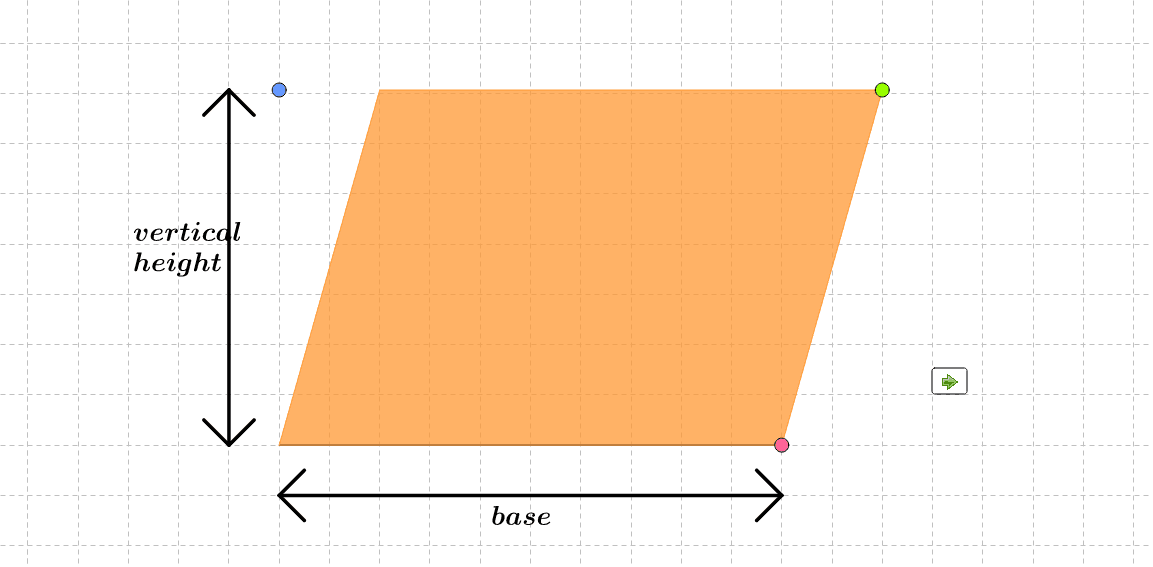
This example demonstrates how learners can intuitively grasp the formula for the area of a parallelogram through interactive exploration. Key math concepts include parallelograms, bases, heights, vectors, and geometric transformations. It is constructed using GeoGebra commands like Intersect, Polygon, Point, Segment, Line, Midpoint, Min, OrthogonalLine, Vector, Translate, and involves objects such as A, minB, maxB, constrainB, a, b, B, c, maxheight, minheight, constrainheight, d, e, height, f, constrainC, g, h, C, i, j, D, poly1, a_1, b_1, c_1, d_1, base_1, base_2, m_1, m_2, m_3, m_4, m_5, base_3, text1, text2, vheight_1, vheight_2, vheight_3. Ideal for middle school and above, this tool aids in geometric teaching and formula comprehension.
GeoGebra Commands & Parameters
Intersect(xAxis, yAxis) → APolygon(A + (minB, 0), A + (maxB, 0)) → constrainB, a, bPoint(constrainB) → BSegment(A, B) → cPolygon(A + (0, minheight), A + (0, maxheight)) → constrainheight, d, ePoint(constrainheight) → heightLine(height, c) → fPolygon((x(B) + (0.5 * x(B - A)), y(height)), (x(B) - (0.5 * x(B - A)), y(height))) → constrainC, g, hPoint(constrainC) → CLine(C, B) → iLine(A, i) → jIntersect(f, j) → DPolygon(A, B, C, D) → poly1, a_1, b_1, c_1, d_1Segment(base_1, base_2) → m_1Segment(base_1, base_1 + (0.5, 0.5)) → m_2Segment(base_1, base_1 + (0.5, (-0.5))) → m_3Segment(base_2, base_2 + ((-0.5), 0.5)) → m_4Segment(base_2, base_2 + ((-0.5), (-0.5))) → m_5Midpoint(base_1, base_2) → base_3Midpoint(vheight_1, vheight_2) → vheight_3Segment(vheight_1, vheight_2) → n_1Segment(vheight_2, vheight_2 + ((-0.5), (-0.5))) → n_2Segment(vheight_2, vheight_2 + (0.5, (-0.5))) → n_3Segment(vheight_1, vheight_1 + ((-0.5), 0.5)) → n_4Segment(vheight_1, vheight_1 + (0.5, 0.5)) → n_5Midpoint(vheight_4, vheight_5) → vheight_6Segment(vheight_4, vheight_5) → p_1Segment(vheight_5, vheight_5 + (0.5, (-0.5))) → p_2Segment(vheight_5, vheight_5 + ((-0.5), (-0.5))) → p_3Segment(vheight_4, vheight_4 + (0.5, 0.5)) → p_4Segment(vheight_4, vheight_4 + ((-0.5), 0.5)) → p_5Min(x(A), x(D)) → ADminOrthogonalLine(B, f) → kIntersect(f, k) → EPolygon(E, C, B) → poly2, b_2, e_1, c_2Vector(B, A) → t_1Translate(E, Vector[(rot * t_1)]) → E'Translate(C, Vector[(rot * t_1)]) → C'Translate(B, Vector[(rot * t_1)]) → B'Polygon(E', C', B') → poly2', b', e', c'Polygon(D, A, B, E) → poly3, d_2, a_2, b_3, e_2OrthogonalLine(A, f) → lIntersect(l, f) → FPolygon(F, A, B, C) → poly4, m, n, p, qPolygon(D, F, A) → poly5, r, s, tVector(A, B) → t_2Translate(D, Vector[(rot * t_2)]) → D'Translate(D, Vector[(rot * t_2)]) → D'_1Translate(F, Vector[(rot * t_2)]) → F'Translate(A, Vector[(rot * t_2)]) → A'Polygon(D'_1, F', A') → poly5', a', d'_1, f'
AI Drawing Prompt Reference
Draw a parallelogram to illustrate its area formula. Start by plotting the coordinate axes and marking their intersection. Create the base and height of the parallelogram using vectors. Then, demonstrate the area equivalence between the parallelogram and a rectangle through geometric transformations like rotation and translation. Finally, highlight key elements such as the base, height, and transformed shapes with different colors and lines, and label the relevant area formulas.
The prompt above was compiled from the original drawing commands and is for reference only.