
Customizing the 3D Graphics View: Using the 3D Graphics Style Bar
Loading the math board and drawing, please wait…
In collections
学习 GeoGebra 经典应用
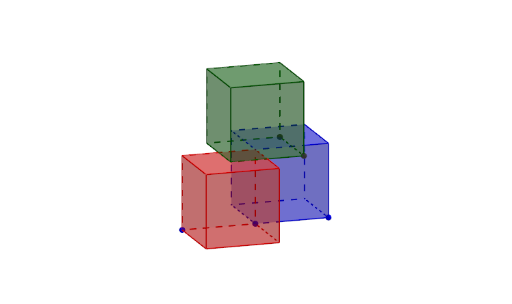
This example demonstrates how to customize the 3D Graphics View in GeoGebra, focusing on the use of the 3D Graphics Style Bar to adjust the display of three-dimensional objects such as a cube. The core mathematical concepts involve solid geometry, including the construction of a cube, midpoints, faces, and edges, as well as spatial visualization. The construction uses GeoGebra commands such as Point to create points A, B, C, etc., Cube to build the cube, and Midpoint to generate midpoints, with objects like faces (e.g., faceABDE) and edges (e.g., edgeAE) organizing the 3D structure. This example is suitable for middle school, high school, or early college students learning 3D geometric construction, developing spatial reasoning, and mastering basic GeoGebra 3D tools.
GeoGebra Commands & Parameters
Point(Circle[B, Distance[A, B], Segment[A, B]]) → DCube(A, B, D) → a, E, faceDEIH, faceFGHI, edgeAE, edgeAB, edgeBD, edgeDE, edgeAF, edgeEI, edgeFI, edgeFG, F, edgeBG, edgeGH, edgeDH, edgeHI, G, H, I, faceABDE, faceAEIF, faceABGF, faceBDHGPoint(Circle[C, Distance[A, C], Segment[A, C]]) → JCube(A, C, J) → b, K, faceJKON, faceLMNO, edgeAK, edgeAC, edgeCJ, edgeJK, edgeAL, edgeKO, edgeLO, edgeLM, L, edgeCM, edgeMN, edgeJN, edgeNO, M, N, O, faceACJK, faceAKOL, faceACML, faceCJNMMidpoint(G, O) → PMidpoint(G, I) → QPoint(Circle[Q, Distance[P, Q], Segment[P, Q]]) → RCube(P, Q, R) → c, S, faceRSWV, faceTUVW, edgePS, edgePQ, edgeQR, edgeRS, edgePT, edgeSW, edgeTW, edgeTU, T, edgeQU, edgeUV, edgeRV, edgeVW, U, V, W, facePQRS, facePSWT, facePQUT, faceQRVU
AI Drawing Prompt Reference
Draw a cube and show the midpoints of its faces and edges connecting to form a new cube structure, start by creating a base cube, then find the midpoints of each face, connect these midpoints to form a new cube, and finally combine both cubes to highlight spatial geometry construction and visualization.
The prompt above was compiled from the original drawing commands and is for reference only.