
Create a Line
Loading the math board and drawing, please wait…
In collections
Linear Equations Activities
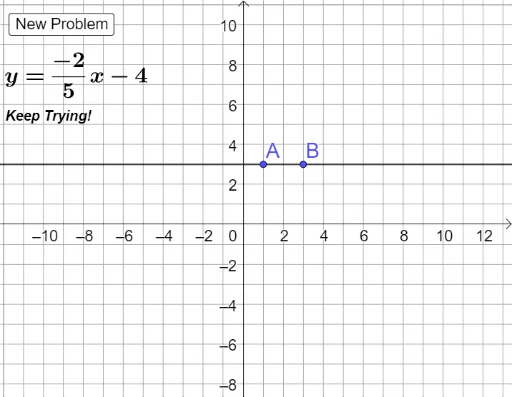
This example demonstrates how to create a line based on a given equation, involving core concepts in coordinate geometry and algebraic representation. It utilizes GeoGebra commands like Random, RandomElement, Line, If, and FractionText, along with objects such as sliders and text elements. Ideal for high school mathematics education and geometric constructions.
GeoGebra Commands & Parameters
Random(-6, 6) → aRandomElement({1 / 2, 2 / 3, 3 / 4, 3 / 5, -1 / 2, -2 / 3, -3 / 4, -3 / 5, 2, -2, 3, -3, 2 / 5, 1 / 4, -2 / 5, -1 / 4}) → bLine(A, B) → gIf(a > -1, "x +", "x -") → sign_1If(a > -1, "x +", "x -") → If(a > -1, "+", "-")FractionText(b) → text1If(f ≟ g, "Good Job!", "Keep Trying!") → text4
AI Drawing Prompt Reference
Create a line with a slope determined by a random number a in the range -6 to 6. The y-intercept is determined by a randomly selected fraction b. Depending on the sign of a, decide whether the x term in the line equation is added or subtracted. Use two points A and B on the line to define the line g. Display the text of fraction b in the workspace. If the equation of line g matches the expected equation, show 'Good Job!', otherwise show 'Keep Trying!'.
The prompt above was compiled from the original drawing commands and is for reference only.